
Update, October 2026: Companion was removed. The TVs in the demo show the app; to file a report, use the phone or the web version.
Two clicks after signing up
Sign up and name your organization. The next step offers to invite teammates, and you can skip it. The last one asks how you want to start:
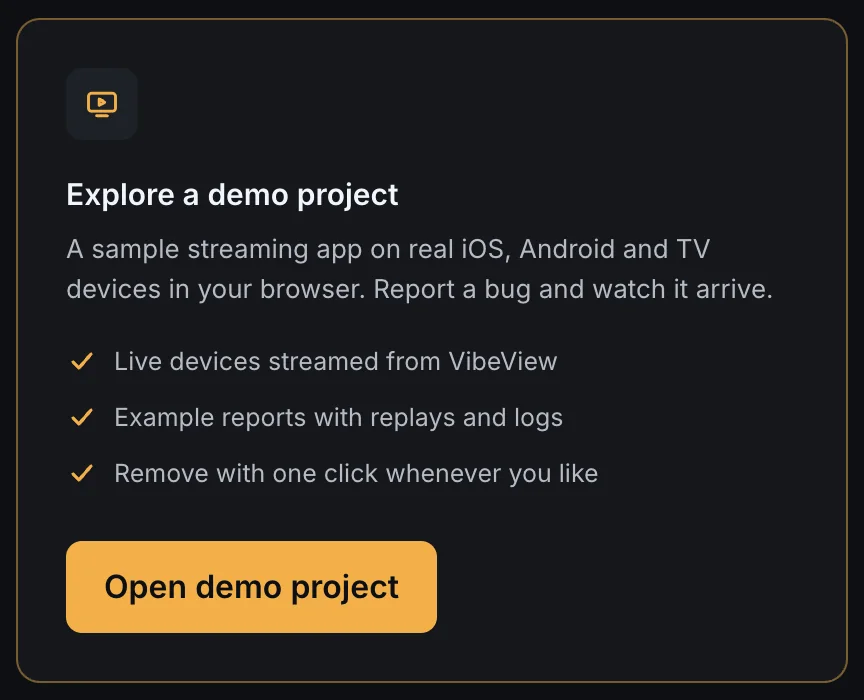
Press Open demo project. Everframe sets up a project with the sample app, its own SDK key and a set of example reports, and opens it. Pick a device and press Tap to Start; in our runs the app was on screen in under a minute. That is the whole setup: no SDK to add, no build, nothing on your machine.
Already have an organization? Try the demo, next to New project on the projects page, sets up the same project.
Why we built it
Choosing a bug reporting tool has an awkward order of operations. The thing you actually want to judge is the report: does it have the screen, the steps, the logs, the failing request? You only see that after you have added an SDK to your app, built it, run it and filed something. That is a branch, a build and an afternoon, multiplied by every tool on the shortlist.
The usual answers stop short of that. Sentry offers a sandbox and bitdrift a browser sandbox with mock data: good for the dashboard, but someone else filed the reports. Firebase Crashlytics and Smartlook give you sample apps to build and run yourself. The closest to ours is Shake’s demo: you install their demo app on your own phone, shake it, and the report appears in a shared demo dashboard.
We wanted the whole loop, in the browser, ending in your own account: a live device, a real report, and the project where it lands. When we surveyed bug reporting and session replay tools in October 2026, we could not find another that lets you pick a live phone or TV during onboarding and file a report into your own project.
Report from a phone
Press Tap to Start. A live iOS simulator starts with Nocturne on it and hands you the screen. Tap Report a bug in the app, and the reporter opens with the screen you were on already attached.
Send it, and the strip above the device changes from “Waiting for your first report…” to “Your report arrived”, with a link straight to it. The Android phone works the same way, on an Android emulator.
Report from a TV, without a remote
The demo has an Apple TV and an Android TV, and both work the same way. A TV in a browser tab has no remote, so the keyboard stands in for one: click the TV, then use the arrow keys, Enter and Esc. Typing a bug report with arrow keys on an on-screen keyboard is nobody’s idea of a demo, so the TV hands that part to Companion.
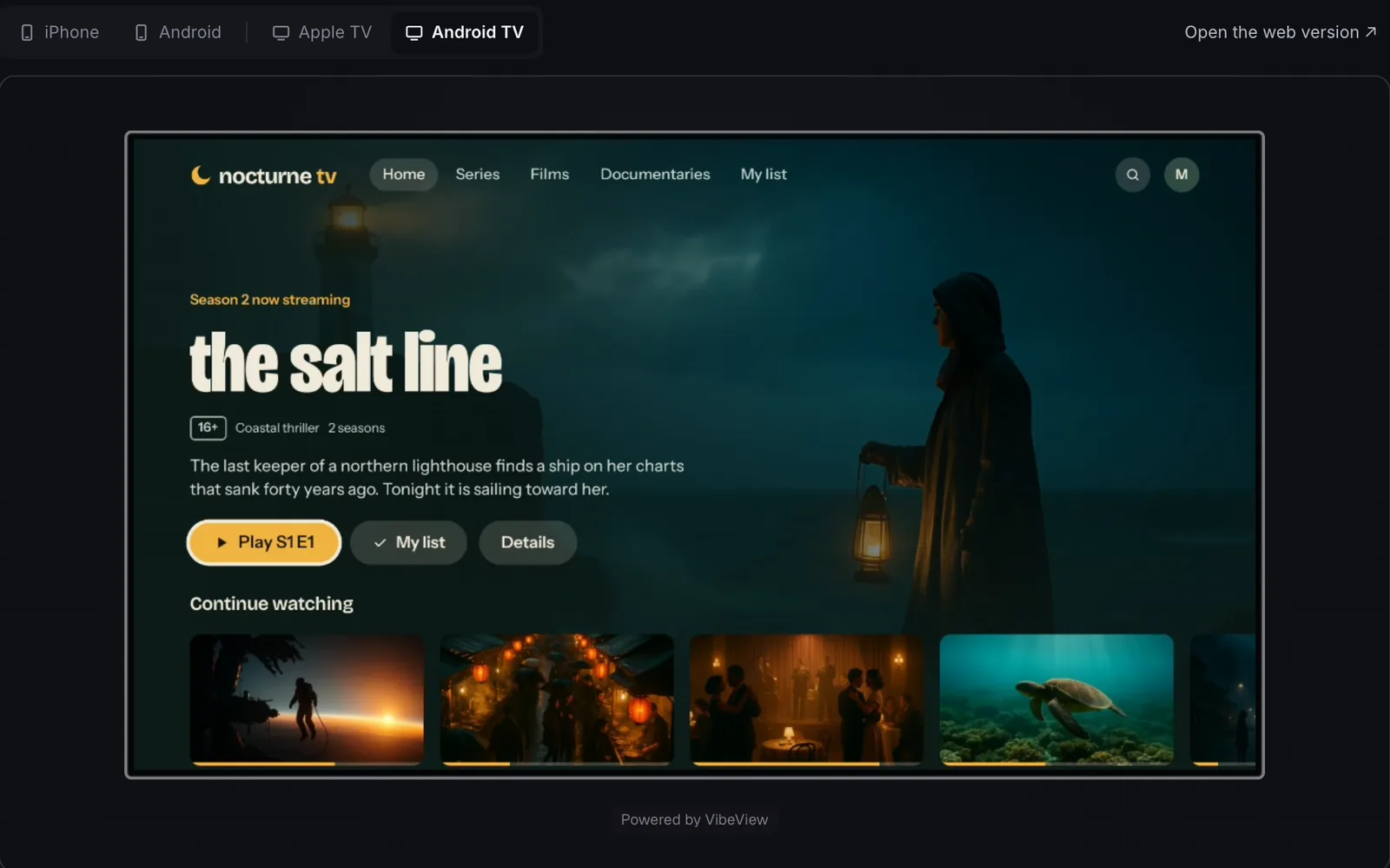
Once Nocturne opens, the TV joins Companion and shows a four-digit code. Type it into the box under the TV and the page connects to it. From then on you browse with the keyboard and write the report in the Companion panel below. The TV’s screen and what just happened on it are attached for you. If you would rather use your phone, the TV’s Profile menu has Report a problem, which shows a QR code to scan.
Companion is the same feature you would use with a real TV on your desk. The demo just puts the TV and the dashboard on one page.
Open what arrived
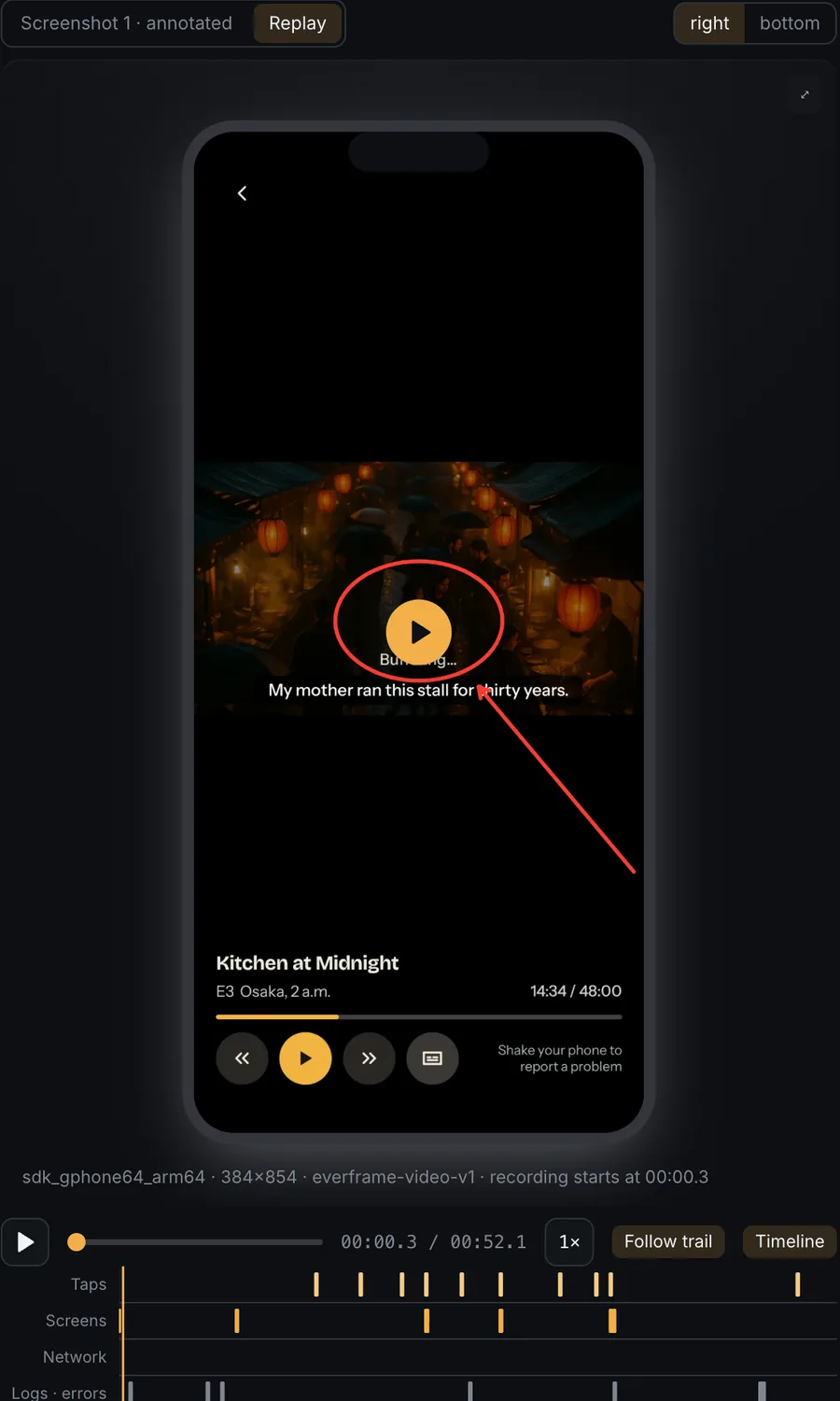
The project is not empty when you arrive. It holds example reports from an iPhone, an Android phone, an Android TV and an Apple TV, so you can look at a finished report before you file your own.
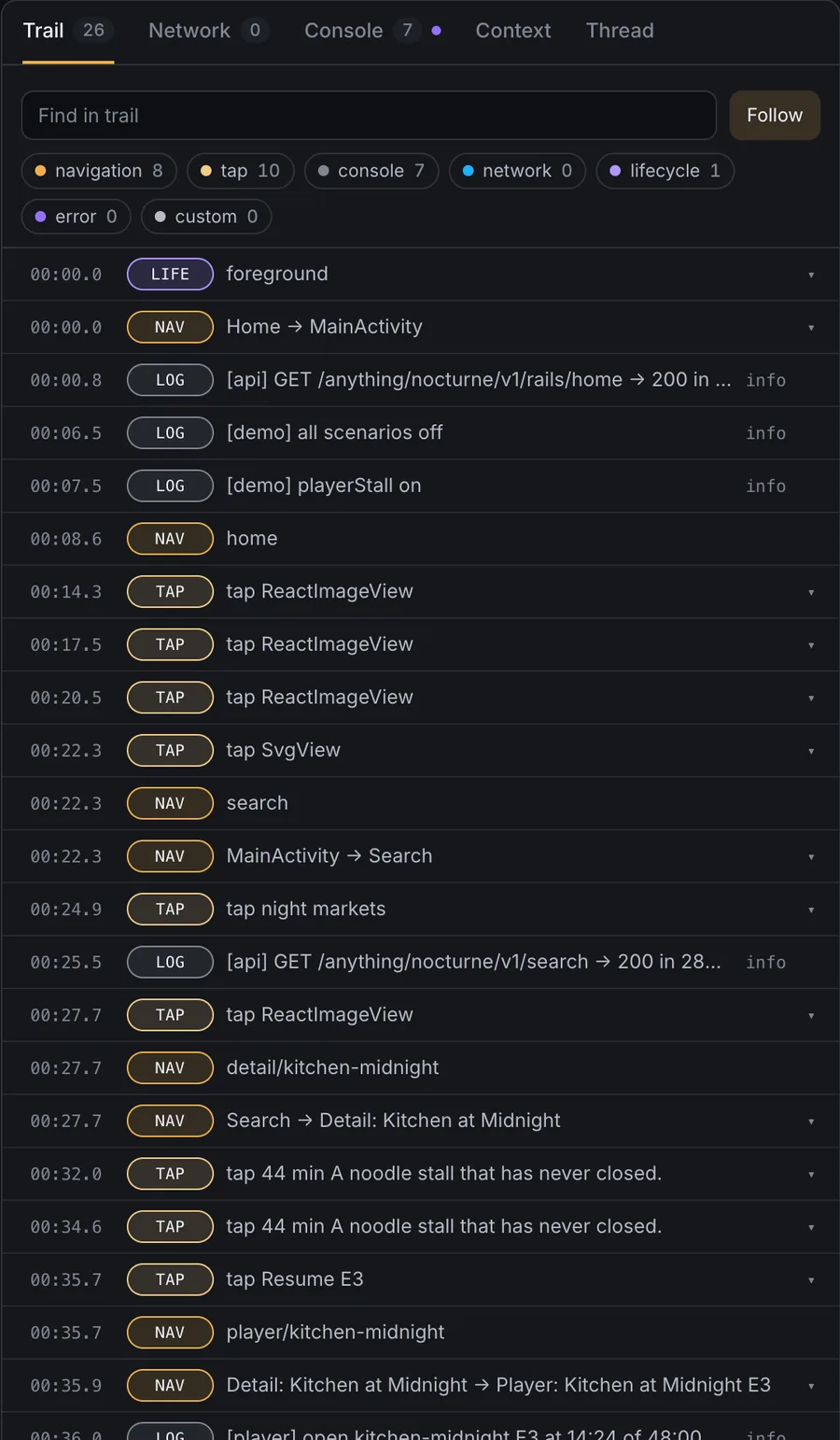
A report opens on its evidence. The annotated screenshot and the replay sit on the left; the trail of navigation, taps, console lines and network calls sits on the right, on the same clock as the replay.
A tour at the top of the demo walks through the rest of what Everframe does with a report: open an example, file one from a live device, move it to the board, and hand it to your coding agent. The last step is one command, which connects Claude Code to the project over MCP:
claude mcp add --transport http everframe https://everframe.dev/mcpHow the live devices work
The devices are streamed by VibeView, which runs iOS simulators and Android emulators in the browser. Each one launches with your demo project’s SDK key, so its reports land in your project, and VibeView recognises you when you come back, so a reload returns you to the same session.
Remove it when you are done
The demo is a separate project with its own SDK key, marked as a demo on every page. Remove demo, on the banner or in the projects list, shows what will go (reports, including any you filed, sessions and replays, and the demo SDK keys) and deletes it. Your other projects are not touched. If you want it back, Try the demo on the projects list sets up a fresh one.
When you are ready for your own app, create an integration from the projects page: pick a platform, install the SDK, and your first report lands in a real project next to the demo.