
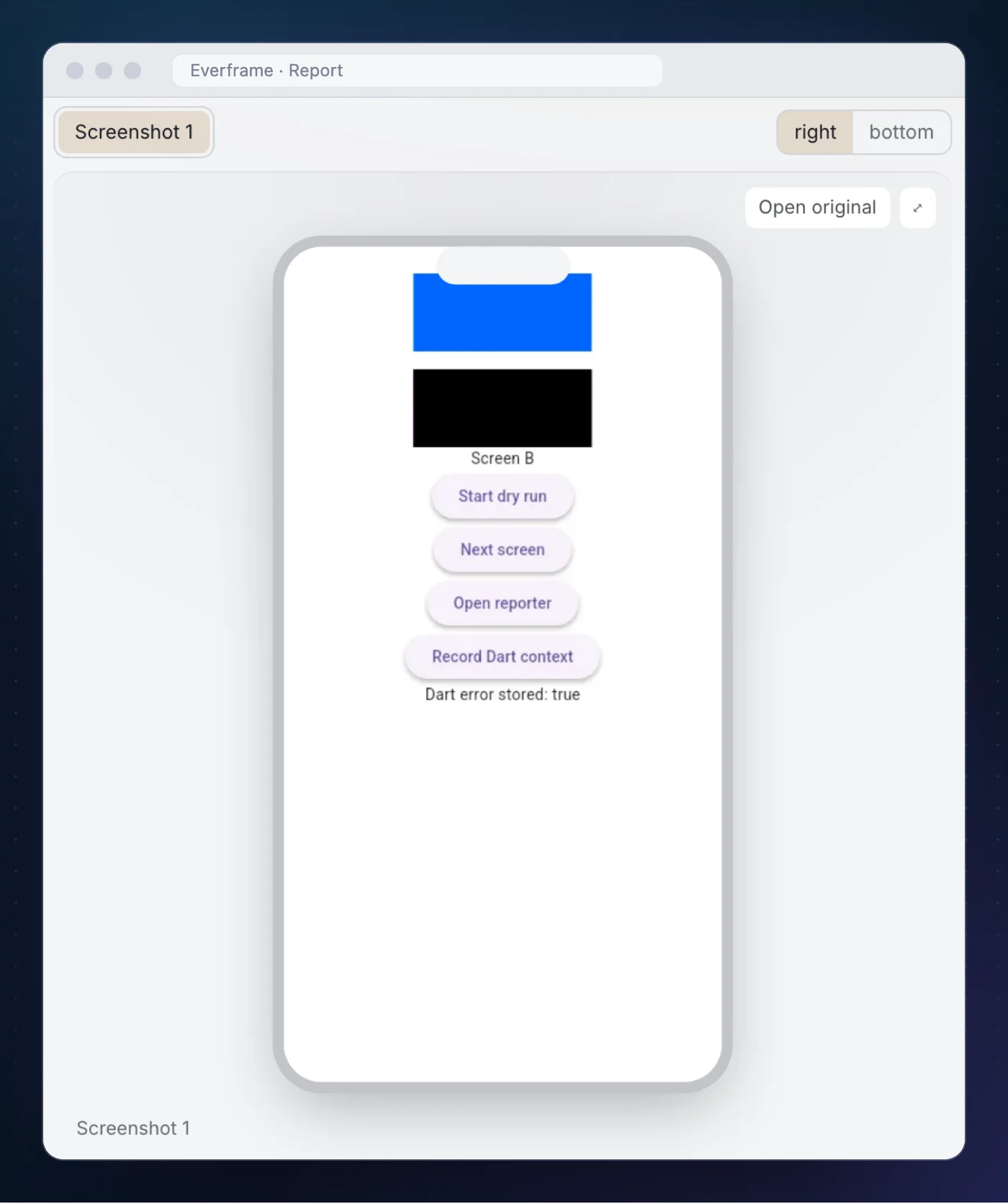
The Flutter tester app has two coloured tiles. The green one is public. The magenta one is wrapped in EverframeSensitive. This is what the dashboard received when we filed a report from it:
We have just released everframe_flutter. This page is one run through it on 1 October 2026: Flutter 3.47.6, Dart 3.13.5, an Android 15 emulator, and a local Everframe dashboard. It covers what we wired, what arrived, and what the plugin does not do for you.
What the plugin is
A bridge. The Dart side captures Flutter pixels and passes them, with whatever context you hand it, to the native Everframe SDK on Android or iOS. The native SDK owns the reporter UI, the encrypted outbox and delivery. On Flutter web a separate EverframeWebBridge, with EverframeWebCapture on the same boundary, hands off to the Web SDK.
That split explains most of what follows. Things the native layer can see, such as taps, lifecycle and the device, are recorded for you. Things only Dart knows, such as your screen names, your exceptions and your HTTP calls, are explicit calls.
Step 1. Create the integration
In the dashboard: Add integration, pick Flutter, name it. The setup page comes back with the app ID and SDK key already filled into the snippets.
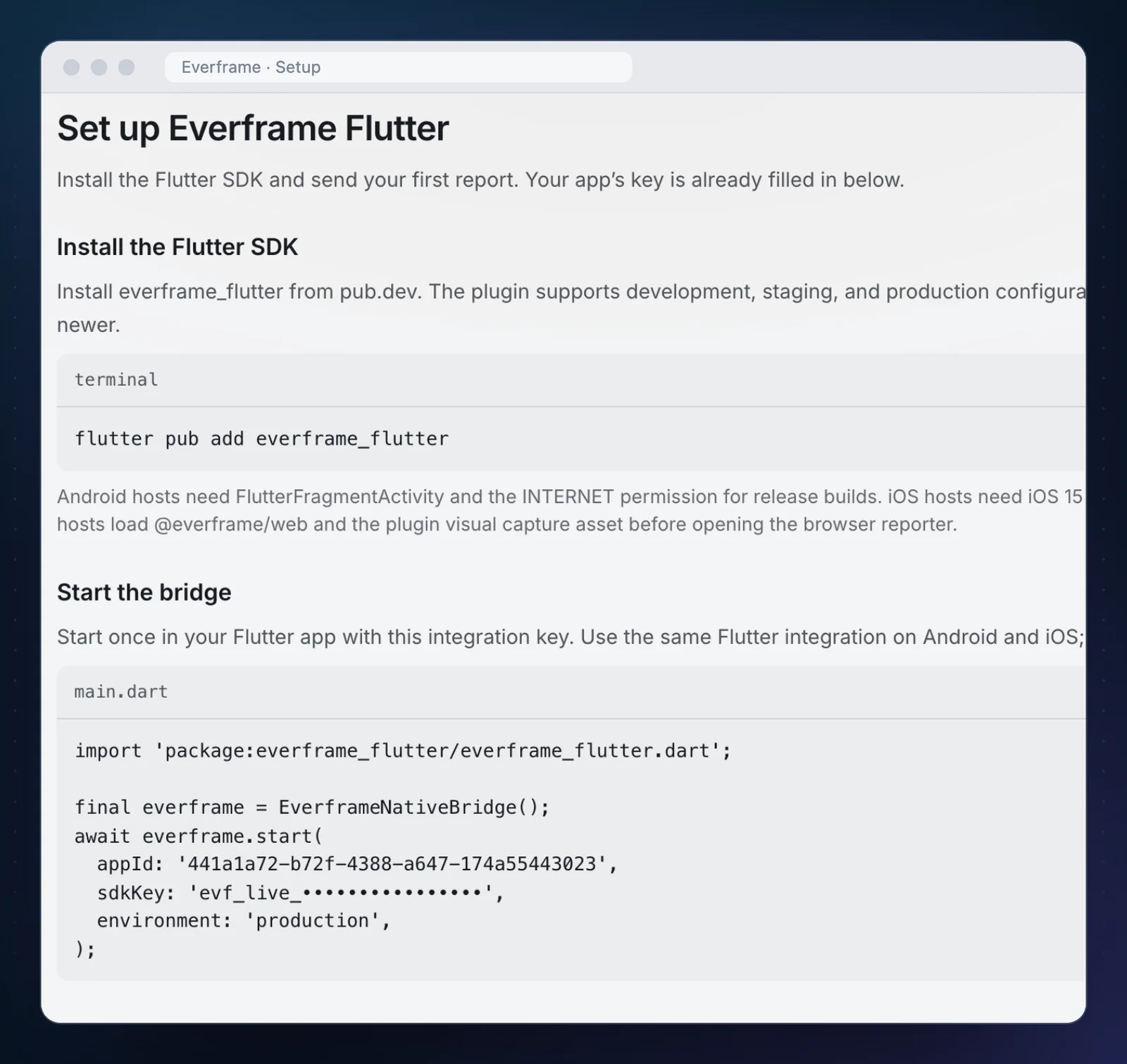
flutter pub add everframe_flutterThe plugin needs Flutter 3.47+ and Dart 3.13+, with Android API 24+ or iOS 15+. On Android the host Activity must be a FlutterFragmentActivity, because the reporter is Compose, and release builds need the INTERNET permission.
import 'package:everframe_flutter/everframe_flutter.dart';

final everframe = EverframeNativeBridge();
await everframe.start(
  appId: '<Flutter integration app ID>',
  sdkKey: '<Flutter integration SDK key>',
  environment: 'production',
);
There is no endpoint argument. The published native SDK owns its ingest endpoint and uses the production one.
Step 2. Draw the capture boundary
If you have ever needed a Flutter screenshot of a widget, you know the mechanism: a RepaintBoundary with a GlobalKey, and its render object turned into an image. The plugin uses the same boundary, with one addition. Every private widget is registered in a SensitiveRegionRegistry, and those rectangles are blacked out before anything is encoded.
This is the tester app’s screen, trimmed:
final boundaryKey = GlobalKey();
final sensitiveRegions = SensitiveRegionRegistry();

RepaintBoundary(
  key: boundaryKey,
  child: Column(
    children: [
      Container(height: 70, width: 160, color: const Color(0xFF00CC00)),
      EverframeSensitive(
        registry: sensitiveRegions,
        child: const SizedBox(
          height: 70,
          width: 160,
          child: ColoredBox(color: Color(0xFFFF00FF)),
        ),
      ),
      // ...buttons
    ],
  ),
)
Two properties of this are worth stating plainly. The capture fails closed: if the masking geometry is unavailable, there is no screenshot, not an unmasked one. And the boundary is the limit of what is captured. A native platform view outside it, such as a map or a web view, is not in the picture.
Step 3. Give it the context only Dart has
The tester app’s “Record Dart context” button does two things:
await everframe.recordNetwork(
  method: 'GET',
  url: Uri.parse('https://api.example.com/orders/123?token=private'),
  statusCode: 503,
  durationMs: 93,
);

final accepted = await everframe.captureException(
  StateError('probe checkout failure'),
  stackTrace: StackTrace.current,
);
Note the URL: a path and a token query parameter. And accepted is true when the error was stored in the native outbox on the device. It confirms local storage, not delivery.
Screen changes are a third call, recordScreen('Screen B'), made wherever your router knows the name.
Step 4. Open the reporter
final outcome = await everframe.openReporter(
  boundaryKey: boundaryKey,
  sensitiveRegions: sensitiveRegions,
);
You own the trigger: a button, a shake handler, a debug menu. On the emulator it went like this.
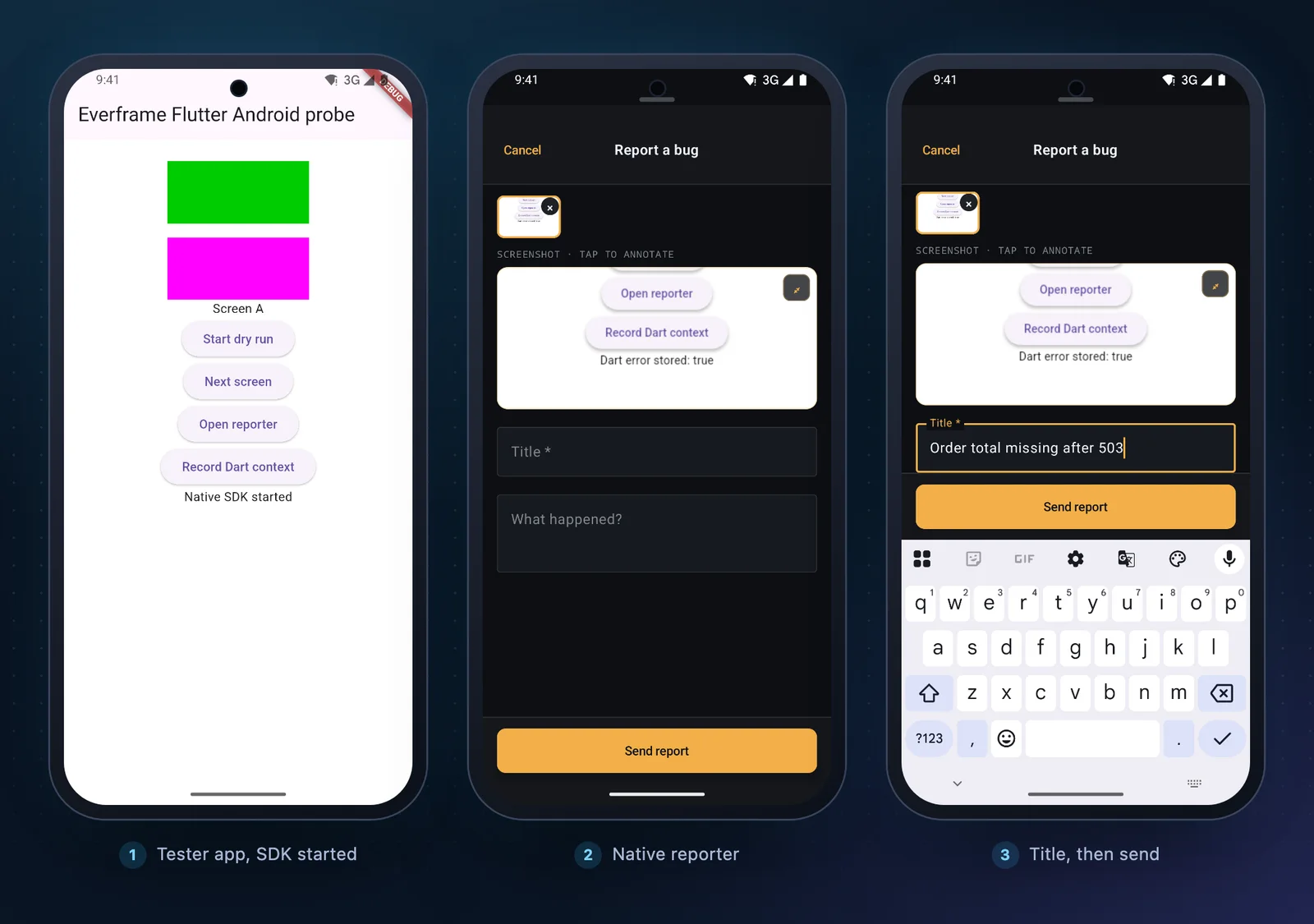
Reporter: submitted after Send.The reporter is native UI, not a Flutter route. The person filing can annotate the capture, delete it, add a title and a description. outcome.status tells your code how it ended.
What arrived
The report at the top of this page is the result. Beside the masked screenshot, the trail began:
LIFE  foreground
NAV   MainActivity → Screen A
TAP   tap FlutterSurfaceView
NAV   Screen A → Screen B
TAP   tap FlutterSurfaceView
NET   GET https://api.example.com 503        93 ms
Three things in there are worth a second look.
The network row is origin only. We recorded https://api.example.com/orders/123?token=private. What crossed the bridge was https://api.example.com, the method, the status and the duration. Paths, queries, headers and bodies do not cross it.
Taps are named after the surface. The native layer sees one FlutterSurfaceView, so every tap carries that name, not the widget’s. The screen names next to them come from your recordScreen calls, which is why those are worth making.
Device and app context needed no code. The Context tab had it:
| Field | Value |
|---|---|
| OS | Android 15 |
| Model | sdk_gphone64_arm64 |
| Screen | 393 × 750 · portrait |
| Locale / timezone | en-US · Europe/Vilnius |
| App | dev.everframe.everframe_flutter_android_probe, v1.0.0, build 1 |
| SDK | everframe-flutter |
| Platform | android · phone |
The handled error landed separately, under Errors, as its own group.
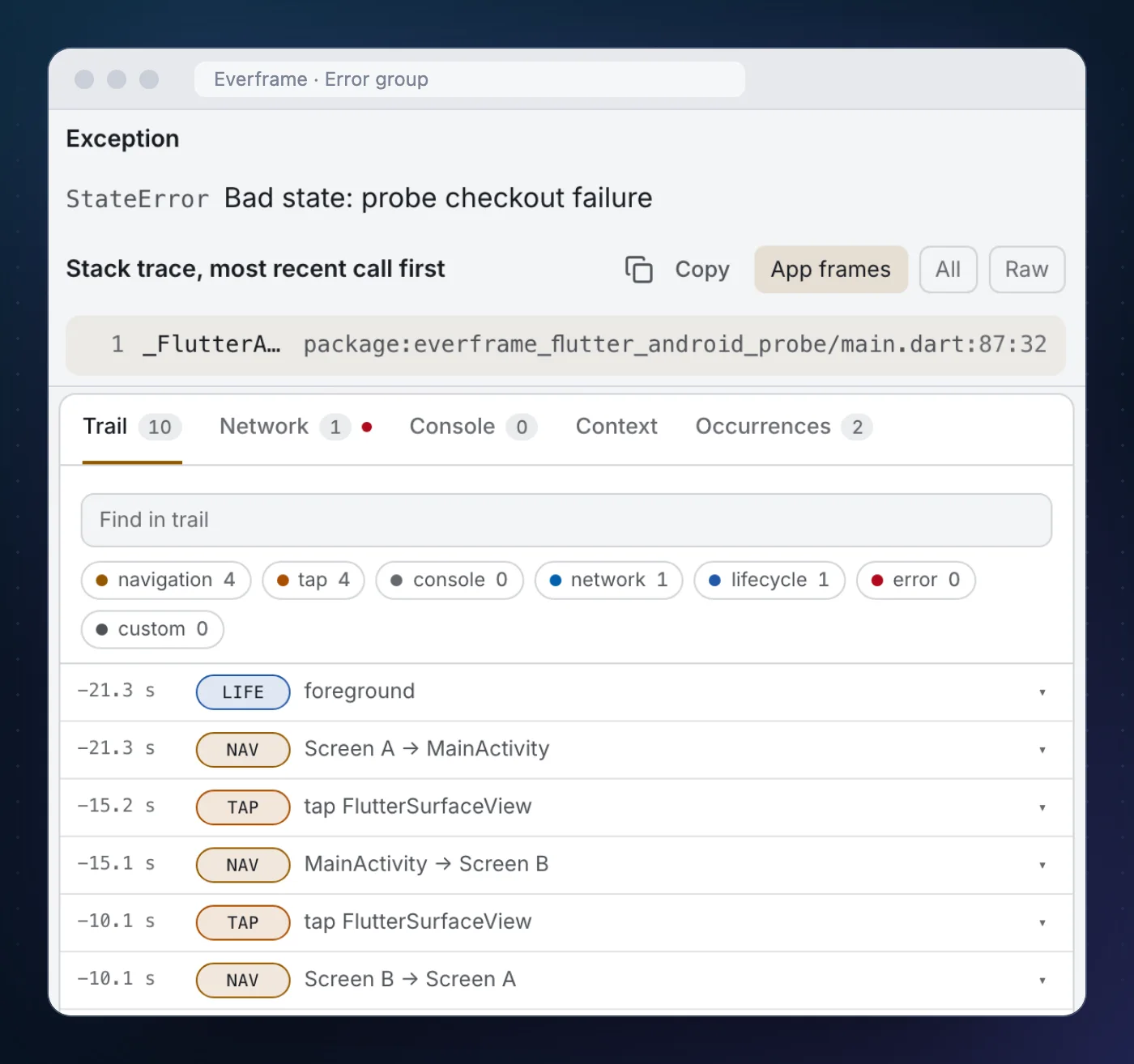
StateError from captureException, grouped, with the trail of the session it happened in.The stack has one frame, _FlutterAndroidProbeAppState._recordContext at main.dart:87:32, which is the line that called captureException. That is the Dart stack as the VM printed it, from a debug build. A release build compiled with --obfuscate or --split-debug-info will not print readable frames, and we have not tested one.
Turning on Flutter session replay
The first report had one attachment, the screenshot. Replay is off for a new integration. A dashboard switch turns it on, and the recorder below has to be wired in Dart.
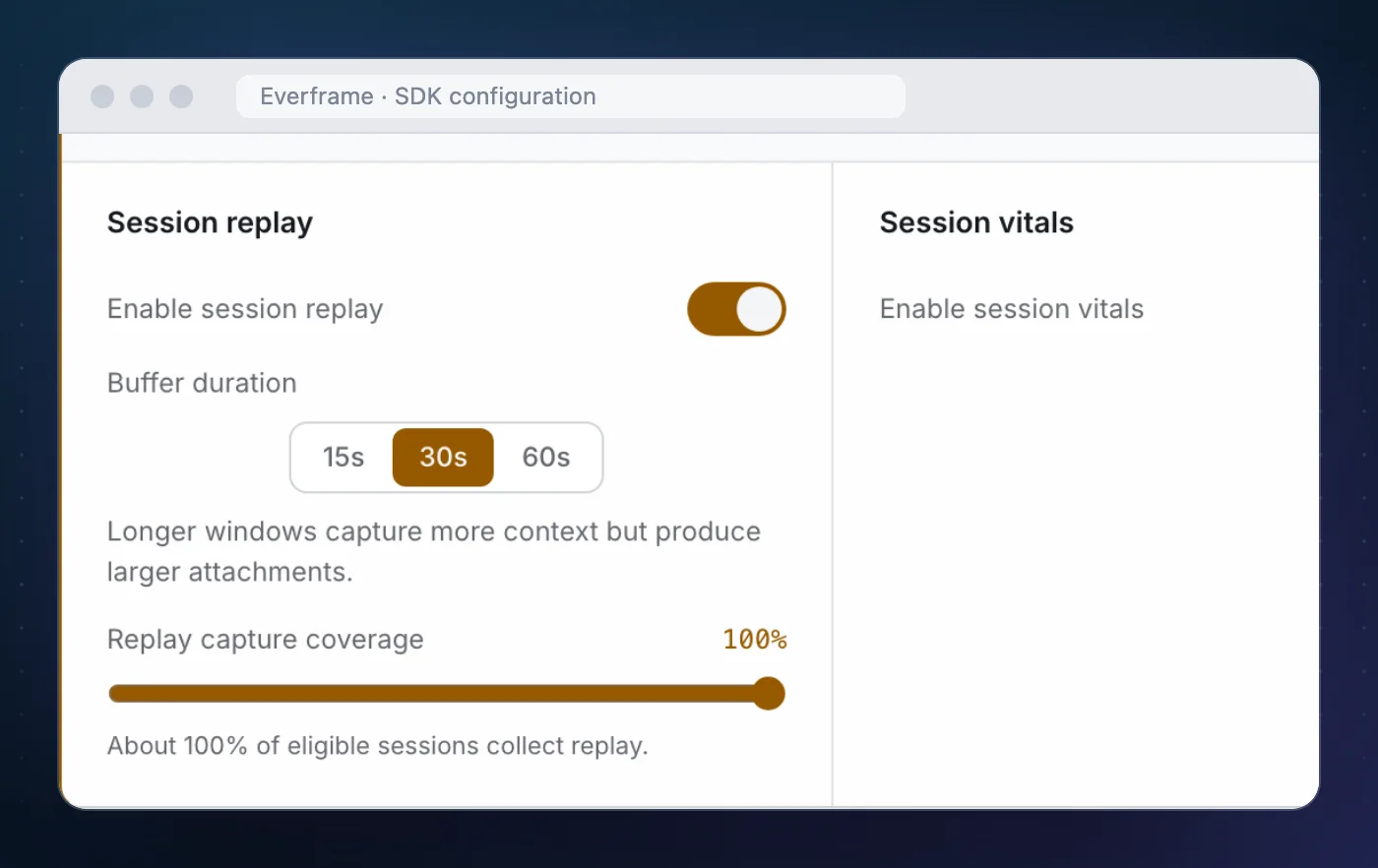
On the Dart side the recorder is explicit. It samples frames that are already masked, into a buffer held in memory and bounded in Dart, at 30 seconds by default:
final replay = SafeReplayBuffer();
late final recorder = SafeReplayRecorder(
  capture: () => captureRegisteredFrameAfterFrame(boundaryKey, sensitiveRegions),
  buffer: replay,
);

await recorder.start();          // after everframe.start()
await recorder.sampleNow();      // e.g. after a screen change

// when the user opens the reporter
recorder.freeze();
await everframe.openReporter(
  boundaryKey: boundaryKey,
  sensitiveRegions: sensitiveRegions,
  replayBuffer: replay,
);
We flipped the switch, restarted the app so the SDK picked up the new configuration, and filed a second report.
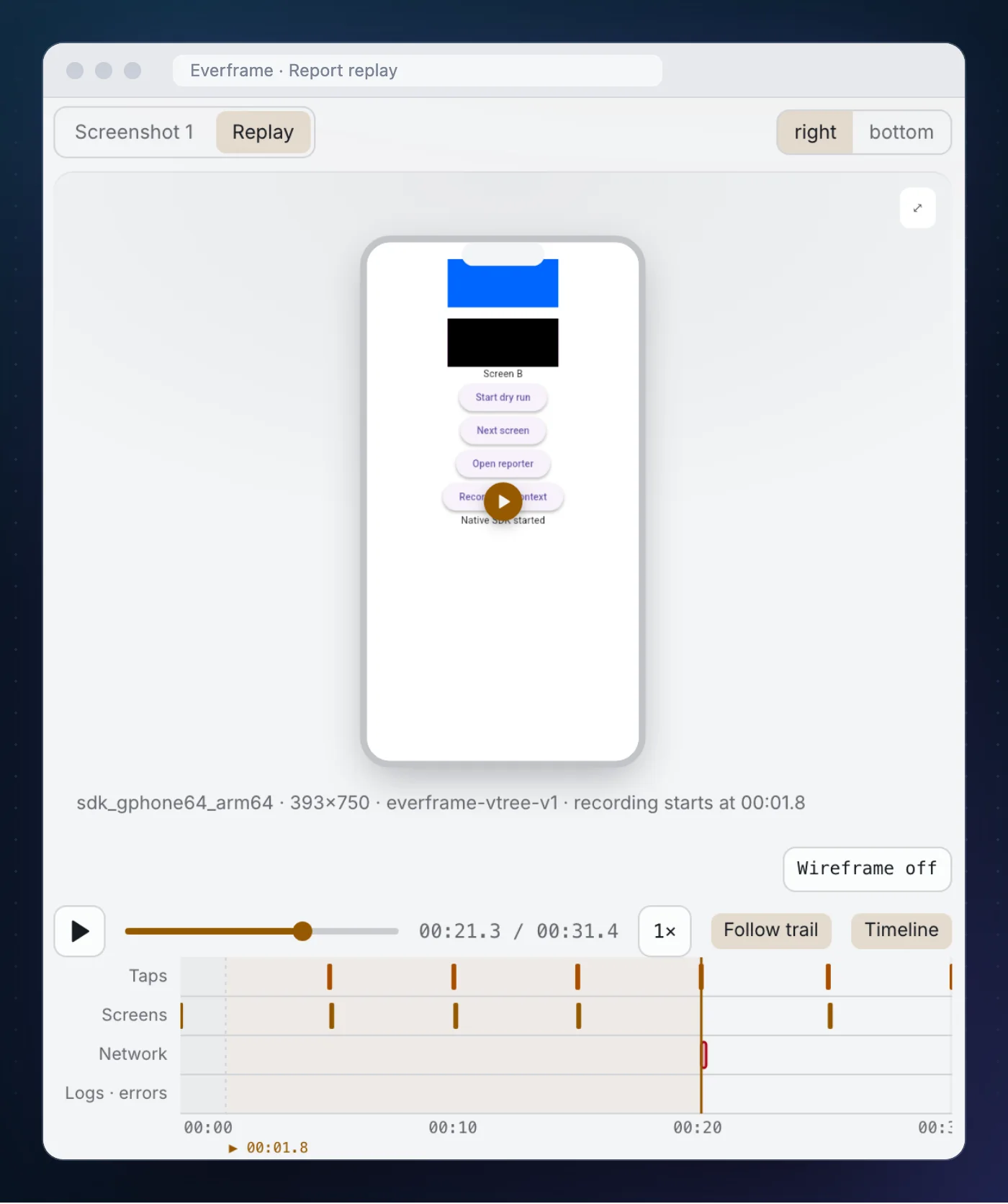
503 row in the trail moved the replay to 00:21.3, the moment of the request.It carried a replay of 31.4 seconds with lanes for taps, screens and network. The sensitive tile is black in every frame, for the same reason it is black in the screenshot: the frames are sampled from the masked boundary.
It is image replay, a sequence of frames. It is not a video of the device screen, it needs no screen-recording permission, and nothing leaves the device until someone files a report.
What it does not do
The plugin has no automatic Dart error hook, no HTTP interception and no Dart console capture. If you want uncaught errors under Errors, you can forward them from FlutterError.onError or a zone handler to captureException. They are recorded through the handled-error path, and we have not tested that wiring. If you want requests in the trail, call recordNetwork from your HTTP wrapper.
It is also not crash analytics. If the question is “how many sessions crashed on the new release”, Firebase Crashlytics answers that and this does not. This is for the report a person files, with the evidence attached, and the two run side by side.
What this run did not verify:
- A physical device. Everything here is an Android emulator. iOS has its own simulator probe, which we did not run for this page.
- The published build end to end. The tester app compiles against local source and a local dashboard in the
developmentenvironment. Your app installs from pub.dev and uses the production endpoint. - Offline retry across a restart. The outbox is native and encrypted, and we have not yet verified a report surviving a process restart on this bridge.
- Embedded platform views. They are not guaranteed to appear in the capture, and we have not tested a screen built around a map or a web view.
If you are adding it this week
- Create a Flutter integration and run
flutter pub add everframe_flutter. Install has the host requirements. - Put one
RepaintBoundaryaround the screen body and register every private widget before you take a single screenshot. - Call
recordScreenfrom your router observer. It is the difference between a trail of anonymous taps and one you can read. - File one report and look at it. Check the masked regions with your own eyes. Then decide on replay. Configuration covers the recorder.
The plugin is MIT-licensed. The complete tester apps are in the repository for Android and iOS, and the Flutter SDK page lists what is captured.