

An Android bug report is a zip file your phone builds on request: device logs, stack traces from anything that crashed, and the current state of every system service, captured in one go. Android offers it under Developer options as Take bug report so a developer can see exactly what the phone was doing when something went wrong. When the file is ready a notification appears, and tapping it is how you share it. Nothing is written by you; the phone writes all of it.
If you found “Take bug report” in your settings or saw a “Bug report captured” notification and want to know what it is, the first three sections answer that. If you are a developer who needs the file, the adb bugreport route and how to read the output come after.
Building an Android app? This page is about the system-wide file a phone builds. If what you want is bug reports from the people using your app, with a screenshot, the steps they took, and your app's logs and network calls attached, that is a different tool: an in-app bug reporter. When a device bug report is the wrong tool covers the split, and the Everframe Android SDK is one way to add a reporter to your app.
What a bug report on an Android phone is
Google’s documentation defines it in one line: a bug report contains device logs, stack traces, and other diagnostic information to help you find and fix bugs in your app. The developer options page describes the menu item as getting “a copy of the current device log files to share with someone.”
So the word means something different on Android than it does in a QA team. A bug report in the usual sense is a description a person writes: what they did, what they expected, what happened. An Android bug report is a machine snapshot. It records what the system was doing. It records nothing about what you were trying to do.
People usually run into it in one of three places:
- The menu item. Android 4.2 and higher support a Developer Option for taking bug reports and sharing them by email, Drive and similar apps. It sits in Developer options, a hidden settings screen.
- The notification. While a report is being built, Android shows “Bug report #1 is being generated”, then “Bug report #1 captured” with “Tap to share your bug report”.
- The power menu. A developer option called Bug report shortcut shows a button in the power menu for taking a bug report. If it is on, a stray tap there starts one.
If you started one by accident, you do not have to do anything with it. It stays on the phone until you share it, and Android’s Shell app clears old ones on its own (details under where it is saved).
Is it safe to share?
Android’s own confirmation dialog for bug reports answers this, and it is accurate:
Bug reports contain data from the system’s various log files, which may include data you consider sensitive (such as app-usage and location data). Only share bug reports with people and apps you trust.
That wording comes from the Shell app that builds the report. The reason it matters: the main file includes messages written by all apps through Android’s logging class, not only the app you are having trouble with. Whatever any installed app chose to log is in there.
Send a bug report to the developer or support team that asked for it, through a private channel. Do not attach it to a public forum post, a public issue tracker or a social media thread. If a developer setting called verbose vendor logging is on, the report also includes additional device-specific vendor logs, which Android warns may contain private information.
One more case: on a phone managed by your employer, an IT admin can request a bug report remotely. Android then asks “Share bug report?” and explains that your IT admin requested it and apps and data may be shared. You can decline.
How to take a bug report on your phone
Developer options are hidden by default from Android 4.2 onwards. Turning them on is the first step.
- Find Build number. On a Google Pixel it is under Settings, About phone, Build number. Google's developer options page has a table of where Build number sits on other manufacturers' phones.
- Tap Build number seven times until you see the message "You are now a developer!". Developer options now appear in Settings.
- Open Developer options and tap Take bug report.
- Choose the type of report (interactive or full, explained below) and tap Report.
- Wait for the notification that the bug report is ready. It takes a moment.
- Tap the notification to share it. Android opens a chooser titled "Share Bug report" where you pick email, Drive or another app.
Interactive or full report
The dialog offers two kinds, and Android’s own descriptions are the best guide to which one to pick:
Interactive report
For most situations. You can track progress, add details about the problem and take screenshots. It might omit some less-used sections that take a long time to collect.
Full report
For when the device is unresponsive or too slow, or when you need every section. Minimal system interference, but no added details and no extra screenshots.
If a developer asked you for one and did not say which, take the interactive report and use its details field to write one sentence about what went wrong. That sentence is the part the file cannot supply.
How to take a bug report with adb
From a computer with Android Debug Bridge (adb) set up for your phone, all versions of Android support capturing a bug report with one command:
adb bugreport E:\Reports\MyBugReportsWhere the output goes: if you don’t specify a path, Google’s docs say the report is saved to the local directory, and that the zip is called bugreport-BUILD_ID-DATE.zip by default. Pass a directory and it is saved inside it; pass a file name and that is the name it gets. (adb’s own help text still says bugreport.zip is the default; the generated name is what Google documents.) Devices that don’t support zipped bug reports print the report to stdout instead.
With more than one device or emulator connected, adb has to be told which one. List them, then pass the serial number with -s:
adb devices
List of devices attached
emulator-5554      device
8XV7N15C31003476   device

adb -s 8XV7N15C31003476 bugreport
The Android Emulator has its own route: click More in the emulator panel, choose Bug report in the Extended controls window, and the screen shows the screenshot, the AVD configuration and the bug report log, with a field for reproduction steps. Click Save Report when collection finishes.
Where an Android bug report is saved
Where the file ends up depends on how you took it:
| How you took it | Where the file is |
|---|---|
| Take bug report on the phone | On the device in /bugreports. You reach it by tapping the notification and sharing it. |
adb bugreport | On your computer: the path you gave, or the current directory. Default name bugreport-BUILD_ID-DATE.zip. |
| Android Emulator, Bug report | Wherever you save it with Save Report. |
| An earlier report on the phone | Still in /bugreports if it has not been cleaned up. List with adb shell ls /bugreports/, copy with adb pull. |
Listing the folder shows the zip, a dumpstate log for each report, and a stats file:
adb shell ls /bugreports/
bugreport-foo-bar.xxx.YYYY-MM-DD-HH-MM-SS-dumpstate_log-yyy.txt
bugreport-foo-bar.xxx.YYYY-MM-DD-HH-MM-SS.zip
dumpstate-stats.txt

adb pull /bugreports/bugreport-foo-bar.xxx.YYYY-MM-DD-HH-MM-SS.zip
Reports do not pile up forever. In the Android Open Source Project code, the Shell app always keeps the newest 8 bug report files and any taken in the last week, and deletes older ones each time a new report finishes. Phone makers can change that code, so treat it as the default rather than a promise.
What is inside the zip
Unzipped, a report looks like this:
bugreport-BUILD_ID-DATE.zip
├── bugreport-BUILD_ID-DATE.txt   the bug report itself
├── version.txt                   small metadata file
├── systrace.txt                  only when systrace was enabled
└── FS/                           files copied from the device
The main text file is the one that matters. Google’s docs describe it as diagnostic output for system services (dumpsys), error logs (dumpstate) and system message logs (logcat). The system messages include stack traces when the device throws an error, plus messages written from all apps with Android’s Log class.
FS/ holds copies of files from the device’s own file system, at their original paths. A file at /dirA/dirB/fileC on the phone becomes FS/dirA/dirB/fileC in the zip. Android writes ANR stack dumps to /data/anr and native crash tombstones to /data/tombstones/, so when those were copied, FS/data/anr and FS/data/tombstones are where to look.
version.txt is a small metadata file. Google’s Android Studio page says it carries the Android release letter; the AOSP format spec says it holds the bug report format version (1.0 for Android N, 2.0 from Android P). Either way, it is not where the answers are. systrace.txt appears only if systrace was enabled, and holds performance timing for your app’s processes and the system’s.
How to read an Android bug report
The main file is plain text and large. Open it in an editor that copes with big files and search it; reading top to bottom wastes an afternoon. The Android Open Source Project’s guide to reading bug reports names the strings worth searching for, and most investigations need only a handful of them:
| You want to find | Search for |
|---|---|
| When the report was taken | dumpstate: begin |
| An app crash (Java or Kotlin) | FATAL EXCEPTION |
| A native crash | a line of asterisks: *** *** *** |
| An app that froze (ANR) | am_anr in the event log, ANR in in logcat |
| The threads at the moment of a freeze | VM TRACES AT LAST ANR, VM TRACES JUST NOW |
| The system running low on memory | am_low_memory |
| Which screen was in front | am_focused_activity |
| The start of the main log | SYSTEM LOG |
A working order for an app problem:
- Pin the time. Search for
dumpstate: begin. Everything after that line was logged while the report was being built, which tells you how far before it the problem happened. - Find the failure. For a crash, search
FATAL EXCEPTION; the stack trace under it gives the type of exception thrown and the line of code that threw it. For a freeze, searcham_anr, thenANR in, which shows what was using CPU at the time. - Match the process. Take the process ID and timestamp from that line. Under
VM TRACES AT LAST ANRorVM TRACES JUST NOW, only trust the stack trace whose PID and timestamp match. - Read the main thread, sceptically. The AOSP guide is explicit that the main thread shows only what it was doing at the moment of the ANR, which may or may not be the true cause.
- Check memory and screens around it.
am_low_memorymeans the last cached process died;am_focused_activitygives the history of which screen was in front.
The log itself is split into buffers. The system buffer is reserved for the framework and keeps a longer history; main has everything else. The event log holds string versions of binary-formatted messages, which is where am_anr, am_low_memory and am_focused_activity live.
Battery Historian, for battery drain, comes with a caveat. The AOSP guide still recommends it for visualising power use from bug report files, but Google archived its GitHub repository on 29 December 2022 and it is now read-only. It analyses reports from Android 5.0 (API level 21) and later, and an archived repository receives no further changes. The report’s own power section, covering screen state and wake locks, is still there as plain text.
When a device bug report is the wrong tool
A bug report is excellent when you hold the phone and can make the problem happen. It is the wrong instrument for almost everything else, and Google’s own page says so: your end users can’t easily share these types of bug reports with you.
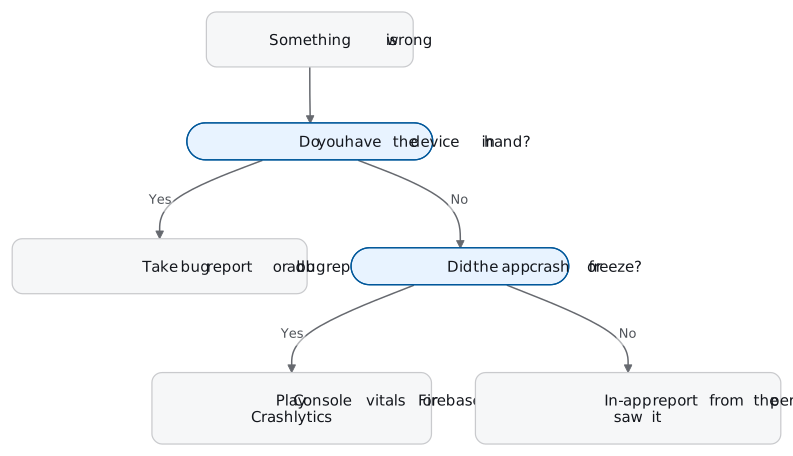
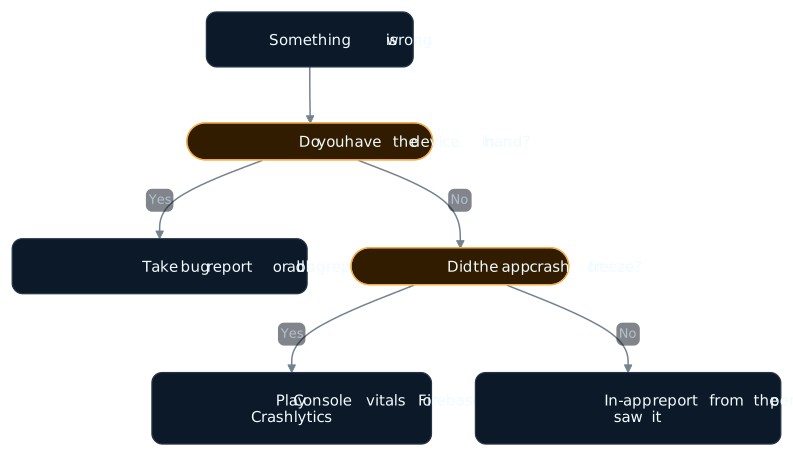
For crashes and freezes on other people’s phones, Google points developers at two places. Google Play Console shows crashes and ANR errors from users who installed your app from Google Play, with data from the previous six months. Firebase Crashlytics collects reports from any user once its dependencies are in your build, groups errors into issues based on similar stack traces, and lets you log custom events leading up to a crash.
What neither of them records, and what the phone’s own bug report does not record either, is what the person was trying to do. A checkout that charges the wrong amount, a video that plays without sound, a form that loses its contents on Back: none of those throws an exception, and none of them shows up anywhere unless the person who saw it can tell you, with the context attached.
Where Everframe fits
Everframe is the third column of that diagram for Android apps. The Android SDK puts a reporter inside your own app, opened from your own button. The person who hit the problem annotates a screenshot and sends it, and the report carries a native screenshot, a short video replay of the seconds before it (Android 10 and later, with text inputs and views you mark sensitive blacked out), your app’s log output, network requests once you attach the OkHttp interceptor, the trail of Activities, and device and app details. Crash reporting is on by default, and on Android 11 and later native crashes, ANRs and low-memory kills are reported from the exit record the OS keeps; the crash reporting on Android page covers the details. It needs API 24 or higher and also runs on Android TV and Fire TV.
It is not a replacement for a device bug report. The SDK sees your app only. It does not read Logcat: it captures logs written through Timber plus System.out and System.err, so plain Log calls and every other app's output are missing, and so are the system-service dumps a bug report holds (what it captures). Native crashes and ANRs before Android 11 are not captured. Reports reach you as signed webhooks or through an MCP server that is read-only by default, not through a Jira or Linear app.
The Free plan covers 1,000 monthly active installs, which is enough to put the reporter in an internal or beta build and see whether the reports that come back answer the question a device bug report cannot: what the person was doing when it went wrong. The Android install guide takes you from the Gradle dependency to a first report.