
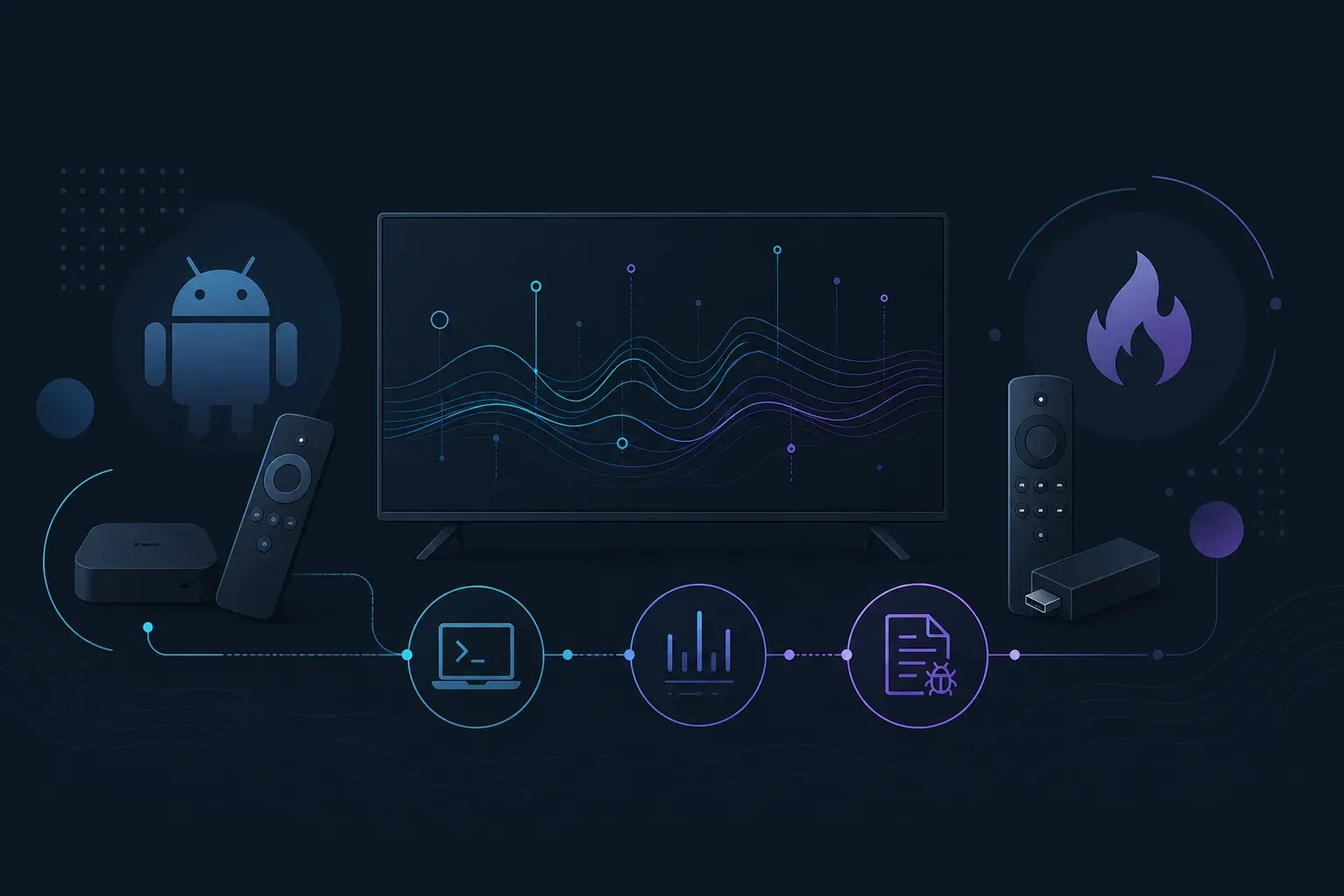
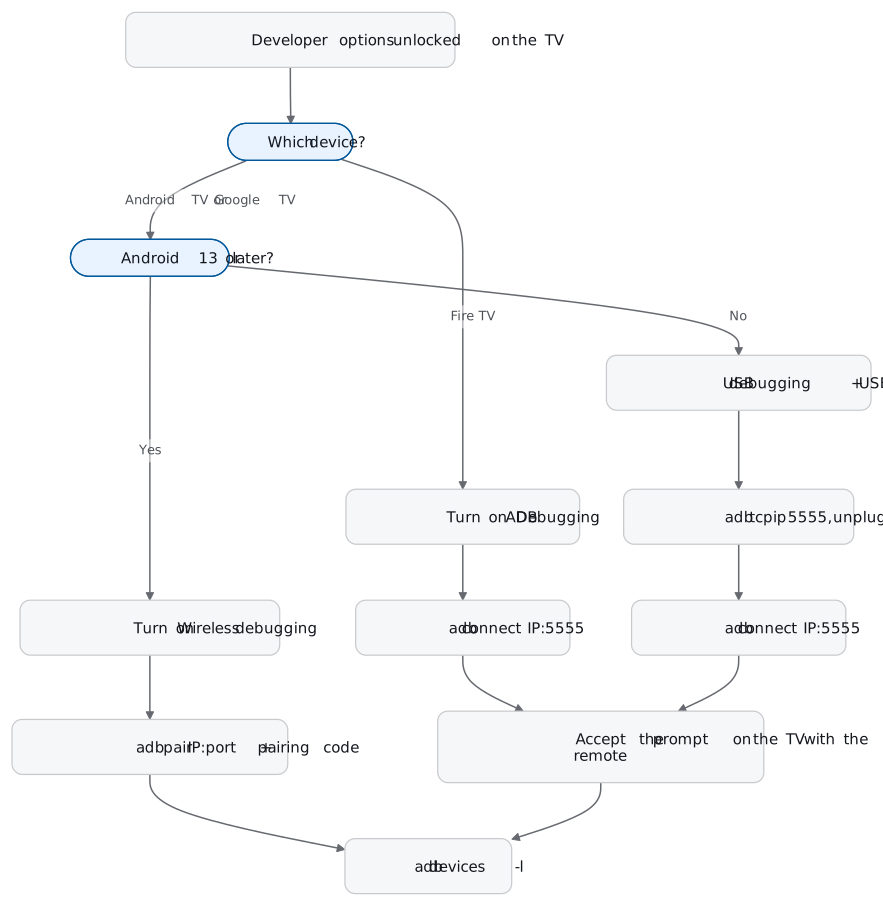
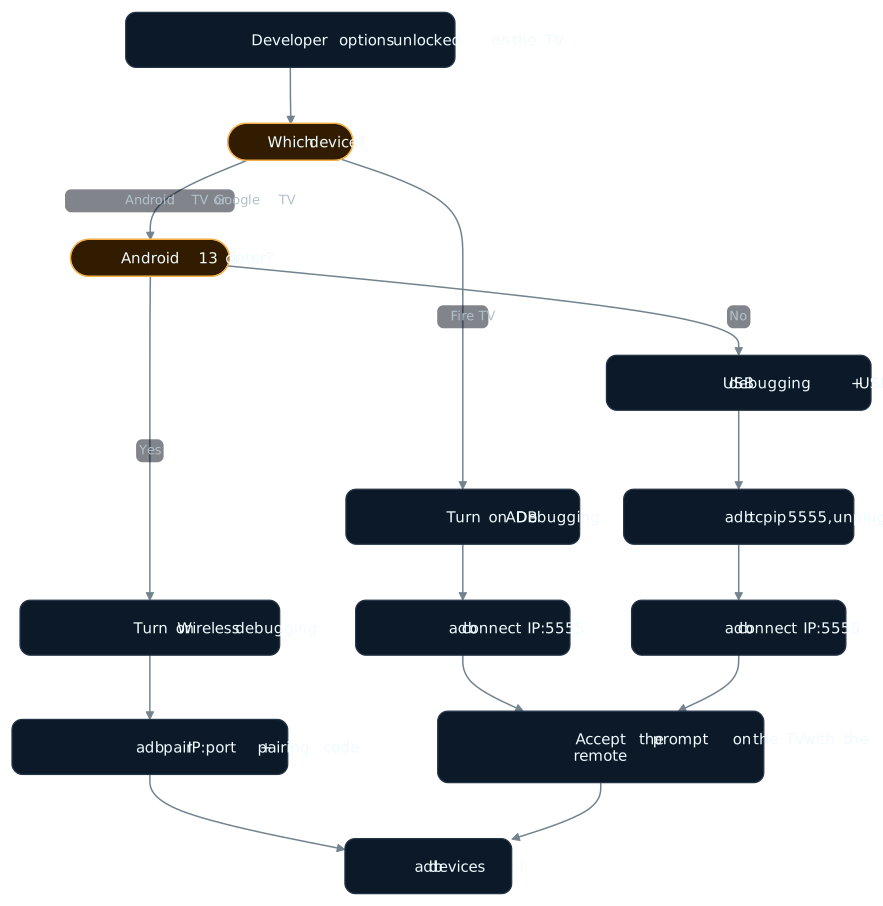
To take an Android TV bug report, turn on developer options and debugging on the TV, connect adb from a computer on the same network, and run adb bugreport. On Fire TV the connection is one command, adb connect <ip>:5555, because Amazon says most Fire TV devices only allow network connections anyway. On Android TV and Google TV running Android 13 or later you pair over Wireless debugging. Older retail Android TV boxes need a USB cable once, for adb tcpip 5555. After that, adb logcat -b crash prints logcat’s crash buffer, which holds the crash logs.
One exception before you start: the Fire TV steps here are for Fire TV devices running Fire OS, which is most of them. Amazon lists three newer sticks, the Fire TV Stick 4K (3rd Gen, 2026), Fire TV Stick HD (2026) and Fire TV Stick 4K Select (2025), as running Vega OS (Amazon’s device table). Those are debugged through the Vega Device Adapter from the Vega CLI, for example vega exec vda connect <ip>:5555 (Amazon’s VDA guide), not adb.
This is the TV half of the Android bug report page, which covers phones. Everything here runs from a computer next to the TV, so it suits a developer or tester with a test device on their desk. It does not reach a viewer’s TV in someone’s living room; the last two sections deal with that.
The three routes, side by side
The commands are the same adb you use for phones. What differs is the first connection.
| Fire TV | Android TV / Google TV, Android 13+ | Older retail Android TV | |
|---|---|---|---|
| Debugging switch | ADB Debugging | Wireless debugging | USB debugging |
| First connection | adb connect <ip>:5555 | adb pair <ip>:<port> with a pairing code | USB cable, adb tcpip 5555, then adb connect <ip>:5555 |
| Cable needed | No; USB only on models with a port | No | Once |
| Prompt on the TV | Allow USB debugging? | Allow wireless debugging on this network | Allow USB debugging? |
Step 1: unlock developer options
Fire TV
Amazon’s Fire TV adb guide puts the switches under Settings > Device (or My Fire TV) > Developer Options.
- Open Settings > My Fire TV. If Developer Options is not listed, Amazon's documentation states that on some software versions you reveal it by clicking the remote's D-pad 7 times on Settings > My Fire TV > About > Your TV.
- In Developer Options, turn on ADB Debugging. Turn on Apps from Unknown Sources too if you sideload test builds.
- Turn on USB Debugging only if your model has a USB port and you will use a cable. While it is on, Amazon says that port is unavailable for external storage or input devices.
Android TV and Google TV
Android’s TV developer guide gives the classic Android TV layout: Settings, the Device row, About, then select Build several times until the TV says “You are now a developer!” Back in Settings, the Preferences row now has Developer options, and Debugging > USB debugging turns adb on. Google’s Cast guide adds one step people skip: go back to the home screen, because that is what applies the setting.
Google TV developer options sit somewhere else. According to a Google TV Streamer walkthrough on All About Chromecast, the path is Settings > System > About, about seven presses on Android TV OS build (not Version), after which Developer options appears under System. The same walkthrough reports that from Android 13, Wireless debugging is its own toggle next to USB debugging. Turn that one on if the TV is on Wi-Fi.
Step 2: connect adb over the network
adb connect on Fire TV
Read the IP address from Settings > My Fire TV > About > Network. Amazon is specific that the Settings > Network screen is the wrong place to look.
adb connect 192.168.1.42:5555
# connected to 192.168.1.42:5555
adb devices
# 192.168.1.42:5555	device
Amazon accepts any port from 5555 to 5585, and says plain adb connect <ip> usually works. The first connection puts an Allow USB debugging? screen on the TV, even though there is no cable. Pick up the remote, tick Always allow from this computer, and press OK. If nobody answers it, Fire TV won’t authorize the connection.
Android TV and Google TV on Android 13 or later
Android’s adb documentation says Wireless debugging needs Android 11 on a phone but Android 13 (API level 33) on a TV.
- On the TV, open Developer options > Wireless debugging and allow it on this network. Ticking always allow on this network saves you the prompt next time.
- Select Pair using pairing code. The TV shows an IP address, a port and a code.
- On the computer, run
adb pair 192.168.1.50:37123with the address and port from the TV, then type the code when asked. - Check it with
adb devices -l. Pairing is one-time: after it, the TV and the computer connect on their own whenever they share a network.
To drop a laptop later, open Wireless debugging, select it under Paired devices and choose Forget.
Older retail Android TV
Google’s Cast debugging guide states that standard retail Android TV devices do not listen for adb connections on their own. Developer-issue hardware does. For a retail box below Android 13, plug in a USB cable once:
adb devices            # accept "Allow USB debugging?" on the TV
adb tcpip 5555         # tell the TV to listen on port 5555
# unplug the cable
adb connect 192.168.1.50:5555
The IP address is under the Device row, Network > Wi-Fi, the connected network, Status info. Some TV devices are Ethernet-only, which Android’s TV hardware guide calls out, so check the wired settings if Wi-Fi shows nothing.
Step 3: take the Android TV bug report
With adb connected, the bug report is the same command as on a phone:
mkdir -p ./tv-reports   # adb treats a path that does not exist as a file name
adb bugreport ./tv-reports
# with more than one device attached:
adb devices
adb -s 192.168.1.50:5555 bugreport ./tv-reports
A Fire TV bug report is the same command, pointed at the address you connected to. Without a path, the zip lands in the current directory. It is named bugreport-BUILD_ID-DATE.zip, and the file that matters is bugreport-BUILD_ID-DATE.txt inside it: dumpsys output for system services, dumpstate error logs and logcat, with stack traces where the device threw an error. Files copied from the device’s file system sit under the FS folder.
Android also documents an on-device route: Developer options > Take bug report, pick a type, then share from the notification when it is ready. The report is saved under /bugreports, so on a TV, where sharing from a notification with a remote is the slow part, pull it with adb instead:
adb shell ls /bugreports/
adb pull /bugreports/<file-name>.zip
For an ANR, Android’s guide to reading bug reports says to search the event log for am_anr, then search logcat for ANR in, which shows what was using the CPU at the time.
Step 4: Android TV logcat and the crash buffer
A full bug report is the state of the whole device. Most of the time you want the crash and the minutes before it.
adb logcat -c                         # clear, then reproduce the bug
adb logcat -b crash                   # just the crash buffer
adb logcat -v threadtime > tv-log.txt # everything, Ctrl+C to stop
adb logcat | grep -i com.example.tvapp
The crash buffer is the useful one on a TV. Android’s logcat reference says it stores crash logs and that the main buffer does not contain them, so filtering main by your package name can miss the crash entirely. -b default reads main, system and crash together. For Fire TV adb logcat, Amazon’s own testing guides do the same filtering, piping adb logcat through grep -i for the app’s tag, or using Android Studio’s Logcat tab.
Two adb commands make up for a TV having no screenshot key:
adb exec-out screencap -p > tv-screen.png
adb shell screenrecord /sdcard/repro.mp4   # Ctrl+C, or stops at 3 minutes
adb pull /sdcard/repro.mp4
Android’s adb documentation lists 180 seconds as the default and maximum for screenrecord. Newer Android builds accept a longer --time-limit, and 0 removes the limit (AOSP source), so adb shell screenrecord --help on the TV tells you what that device allows. Either way, start it just before the step that fails, not at the beginning of a ten-minute repro.
If a long repro scrolls the crash out of the log, Google’s own bug-capture instructions for one of its apps set Developer options > Logger buffer sizes to the largest the device supports, then clear with adb logcat -c before each new bug.
What breaks on a TV
Every route above ends at a prompt on the TV screen. If the person holding the remote is not the person at the laptop, nothing is authorized until one of them walks over.
The screensaver takes the repro with it. Android’s ambient mode guide says Android TV and Google TV enter Ambient Mode after 10 minutes of user inactivity. Press a key within 30 minutes and your app comes back. Wait longer and the TV returns to the Home screen, so the state you were about to capture is gone. Apps can hold the screen on only during user-started playback, and nobody can stop the later Energy Saver step that powers the display off.
“Off” is not off. Android’s TV hardware guide says some TVs have a low-power mode when switched off: the display goes dark, Android TV keeps running, audio stays enabled, and the app gets onStop, then onStart when power returns. A bug that “happens after turning the TV on” is usually a lifecycle bug, and it reproduces with the power button, not with a reinstall.
The connection drops. Android’s adb documentation says to check both ends are on the same Wi-Fi network, run adb connect again, and fall back to adb kill-server. Amazon’s Fire TV list adds closing Android Studio and other emulators, restarting the Fire TV from Settings > Device (or System) > Restart, and restarting the router, and names the two errors you will see: Operation timed out and error: device offline.
Fire OS is an older Android than it looks. Amazon’s Fire OS overview says Fire OS 7 is based on Android 9 and Fire OS 8 on Android 10 and 11. Anything your app reads from APIs added after that is not there, and what a crash leaves behind depends on the Android base, which matters for the next section.
Why adb stops at your desk
Everything above needs four things at once: a computer with platform tools, the TV on the same network, developer options already on, and someone at the TV to press OK. That is fine for the developer who owns the bug. It is not how a tester reports one, and a viewer’s TV never has any of the four.
adb at a desk
Full system state and every log line. Needs a laptop, the same network and someone at the remote.
Crash reporting in the app
Runs on every TV without anyone present. Tells you the app died and where, on the next launch.
Tester-started capture
A tester marks the moment something looks wrong. Gets the screen and the logs without a laptop.
The second and third rows run inside the app, so they work on test TVs in a lab, in an office and in a tester’s home. They do not replace a full bug report when you need system state. They replace the cases where nobody could have taken one.
Where Everframe fits
Everframe’s Android SDK is the same two Maven artifacts on phones, Android TV and Fire TV. On a TV it does two jobs.
Crash reports, with no one at the TV. Uncaught Java and Kotlin exceptions become reports on their own and are sent on the next launch, with the trail of screens before the crash and the device. On Android 11 and later the SDK also reports native crashes and ANRs from the exit record the OS keeps; native crashes carry a native stack from Android 12. Amazon’s Fire OS overview puts Fire OS 8 on Android 10 and 11 and Fire OS 7 on Android 9. On the Android 11 base, native crashes and ANRs are reported, and native crashes arrive with no stack frames. On Android 9 there is no exit record, so you get JVM crashes alone. A low-memory kill is reported only when the OS records it as one. On a TV the kernel can end the app first, and that exit is not reported. The crash reporting page has the table by Android version.
Quick capture from a linked Android TV. Link a test TV under Project settings → Devices, confirm the two-digit number the TV shows, and the TV’s capture gesture then files a draft for you, or for the team inbox. By default the gesture is holding Play/Pause for about 1.5 seconds, and an admin can change it for remotes that differ. The draft carries a screenshot of what the TV rendered, logs, breadcrumbs and network calls, plus the replay window when replay is on for the app, and you title it on the dashboard. Quick capture has to be switched on for the app first. Nothing is typed on the TV. A TV that is not linked, on a release build, does nothing at all, so viewers see no change. Quick capture on real devices covers linking and gestures.
The limits. There is no reporter screen on the TV: a tester cannot write a description there, only mark the moment and add the words on the dashboard. Quick capture works on Android TV. Fire TV gets crash and error reports, and quick capture there comes later. The logs Everframe attaches are Timber output and System.out and System.err, not plain android.util.Log calls and not the system log, so for system state you still want adb bugreport. Network calls appear only once you attach the OkHttp interceptor.
If you have a test Android TV on your desk, linking it takes the four steps on the quick capture page, and the next glitch becomes a draft with the screen and logs attached instead of a phone photo of the TV.
FAQ
How do I take an Android TV bug report?
Turn on developer options and debugging on the TV, connect adb from a computer on the same network, and run adb bugreport with a folder path. The zip lands in that folder. Its main text file holds dumpsys, dumpstate and logcat output, including stack traces when the device threw an error. On Android 13 and later you can pair over Wireless debugging; on older retail Android TV devices, Google’s Cast documentation says the first connection needs a USB cable and adb tcpip 5555.
Can I adb connect Fire TV without a USB cable?
Yes, and on most models you have to: Amazon says most Fire TV devices only allow network connections. Turn on ADB Debugging under Settings > My Fire TV > Developer Options, read the IP address from Settings > My Fire TV > About > Network, and run adb connect with that address and port 5555. Accept the Allow USB debugging? prompt on the TV with the remote.
Where are Google TV developer options?
Android’s TV developer guide unlocks them from Settings, Device, About, by selecting Build several times until the TV says “You are now a developer!” A Google TV Streamer walkthrough on All About Chromecast reports the newer layout: Settings > System > About, about seven presses on Android TV OS build, after which Developer options appears under System.
How do I get a Fire TV crash log?
Connect adb over the network and read logcat’s crash buffer with adb logcat -b crash. The crash buffer stores crash logs, and the main buffer does not contain them. For an ANR, take a full adb bugreport and search it for am_anr and ANR in.
Why does my adb connection to the TV keep dropping?
Check the computer and TV are still on the same network, run adb connect again, and if that fails run adb kill-server and start over. Android TV and Google TV also enter Ambient Mode after 10 minutes of user inactivity, and after more than 30 minutes in Ambient Mode a key press returns the user to the Home screen, away from your app.