
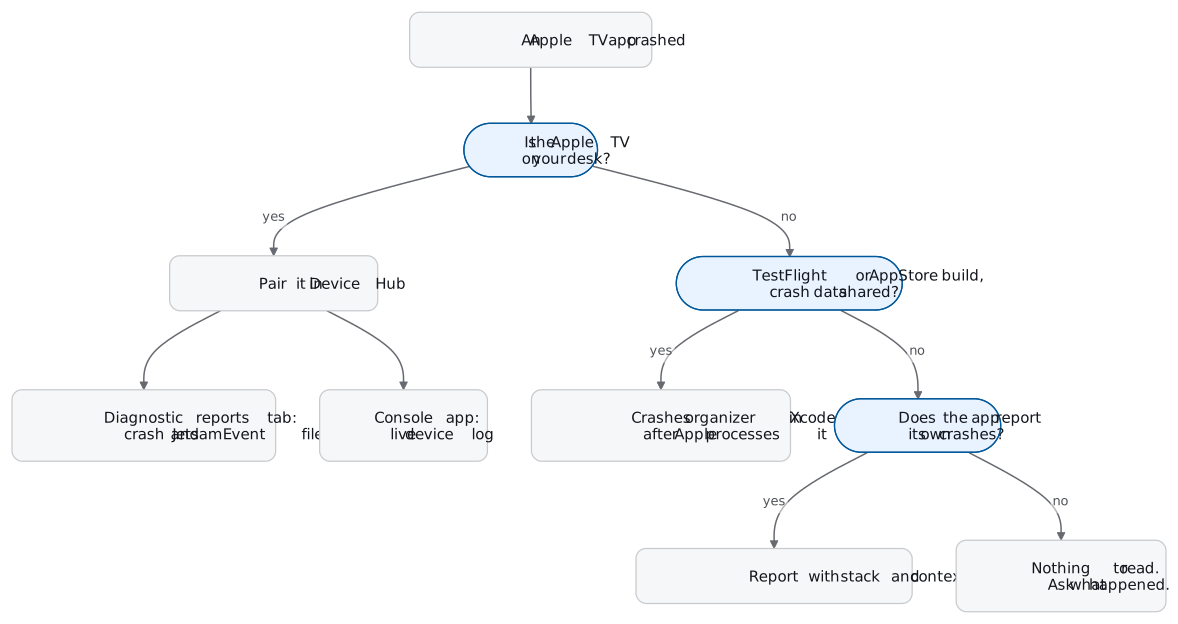
tvOS crash logs come from three places, and each one misses something. Xcode’s Crashes organizer collects crash reports from TestFlight and App Store builds, symbolicated and grouped. A paired Apple TV on your desk keeps its own crash reports and console log, which you read through Xcode’s Device Hub and the Console app. Everything the first two cannot see, from a memory kill with no stack to a tester who only has an email address to complain to, reaches you only if the app reports it itself.
Apple TV is the awkward member of Apple’s family here. There is no MetricKit entry for tvOS in Apple’s documentation, TestFlight tvOS testers cannot send a screenshot with their feedback, and the Apple TV 4K has no USB port, so every log you pull from it comes over the network.
This guide is for teams shipping native or React Native apps to Apple TV. If your app also runs on Google’s or Amazon’s TV platforms, Android TV and Fire TV bug reports covers adb and logcat. Samsung and LG web apps are in Smart TV app logs, and Roku channels in Roku crash logs.
The three routes, side by side
| Route | What you get | What it needs | What it misses |
|---|---|---|---|
| Crashes organizer in Xcode | Symbolicated, grouped crash reports from TestFlight and App Store builds, past two weeks | A TestFlight or App Store build; App Store users who agreed to share data | Jetsam and watchdog events, crashes from users who did not opt in |
| A paired Apple TV | Every crash report and JetsamEvent file on that device, plus the live console log | The Apple TV on your network, paired with your Mac | Every Apple TV that is not on your desk |
| The app reports itself | Crashes and errors from any Apple TV running your build, with whatever context you attach | A crash reporter in the app | Whatever that reporter cannot catch |
Menu names, versions and limits below are as Apple’s developer documentation, Xcode help and App Store Connect help describe them on 28 October 2026, with Xcode 27 and tvOS 27 current.
Route 1: the Crashes organizer
Apple’s report service is the route with the least setup. Xcode’s help lists tvOS apps on tvOS 9.0 and later among the targets whose crash logs the Crashes organizer collects. The service takes crash logs from apps distributed with TestFlight or through the App Store, organizes the past two weeks of them into reports, symbolicates and groups them, and updates the reports daily. Open it from Window > Organizer, then Crashes.
Who shares matters. TestFlight testers share crash reports automatically, whatever their device’s analytics settings say. App Store users have to agree to share crash data with app developers first, and Xcode’s help puts that switch on Apple TV under Settings, General, Privacy, Share with App Developers. Apple says it can’t provide crash reports for users who don’t share that data with developers, however often your app crashes for them.
The organizer also leaves out whole classes of failure. Apple lists watchdog events, invalid code-signature crashes, thermal events and jetsam events (high memory use) as crash types the Crashes organizer does not have, and points you to the device for them.
Symbol information decides whether an Apple TV crash report is readable. Organizer reports contain symbol names when you include symbol information with the build you submit. Apple’s own procedure for working from crash reports starts one step earlier: build with symbol information and retain the Xcode archive before you distribute the app, because converting a report’s hexadecimal addresses into symbol names needs that build’s symbols.
Route 2: an Apple TV on your desk
tvOS debugging starts with pairing, and the Apple TV makes that a network job. Apple’s specifications for the Apple TV 4K (3rd generation) list HDMI, Wi-Fi 6 and, on one model, Gigabit Ethernet, with no USB port on the box. There is also no Developer Mode switch to find: Apple’s documentation says tvOS has none, and Developer settings appear on the Apple TV once you pair it.
In Xcode 27, pairing happens in Device Hub, an app that ships alongside Xcode 27. Open it from Manage Devices in Xcode’s run destination menu, or from Xcode > Open Developer Tool > Device Hub.
- Put the Mac and the Apple TV on the same Wi-Fi network, with IPv6 enabled. Apple names IPv6 as a requirement for pairing tvOS devices.
- In Device Hub, click the Add Device button (+) and choose Pair Nearby Device.
- On the Apple TV, open Settings > Remotes and Devices > Remote App and Devices. The TV broadcasts itself to the Mac.
- Select the discovered Apple TV in Device Hub, click Next, and enter the PIN the TV shows.
- Select the Apple TV in the sidebar and click the Info button to open the inspector. Its diagnostic reports tab lists what the device has logged, crashes and spins included.
On an older Xcode the same pairing lives in Window > Devices and Simulators: open Remote App and Devices on the Apple TV, select it under Discovered, and enter the verification code. That window also shows a connected device’s crash logs and its console.
Two version rules catch people. Xcode 27 supports on-device debugging on tvOS 17 and later, and its Instruments needs tvOS 17 or later on the target device, so a test Apple TV still on tvOS 16 needs an older Xcode. And Apple says that after you upgrade the operating system on a paired device, you have to pair it again, so expect to redo the steps above after every tvOS update on your test fleet.
Crash reports on the device
On the device, a crash report’s name starts with your app’s binary name and a date and time. A memory termination is a separate JetsamEvent file. Apple crash reports use the .crash and .ips extensions, and when you post one for help Apple asks for the .ips file where you have it.
Jetsam files are worth knowing how to read, because they are the only record of a memory kill. Apple’s documentation says jetsam event reports carry system memory information but no stack traces of your app’s threads. You learn that the app was ended for memory, and roughly how much it held. You do not learn which screen or which image cache did it.
The debugger hides crashes too. When your app crashes with Xcode’s debugger attached, the debugger intercepts the crash so you can inspect the app’s state. Apple’s fix is to detach with Debug > Detach or the detach command in the debugging console, which lets the app finish crashing and the operating system generate the crash report. Then collect it from the device.
Apple TV app logs that are not crashes
For a hang, a playback stall or a login loop, the useful Apple TV app logs are the device’s console log. Apple’s steps for tvOS are the same as for iOS: connect the device to your Mac, open the Console app, select the Apple TV in the sidebar, reproduce the issue and note the exact time, then read the log entries around it. For an Apple TV 4K, which has no USB port, connected means paired over the network.
Apple also publishes tvOS logging profiles and instructions on its Profiles and Logs page for bug reports. The tvOS list includes sysdiagnose, crash log and console log instructions, plus profiles such as CoreMedia (HTTP Live Streaming) and Memory Exception. If you are filing a Feedback Assistant report about a streaming bug that looks like Apple’s fault rather than yours, start there.
Route 3: TestFlight tvOS testers
TestFlight is Apple’s route for putting a beta build on Apple TVs you do not own. A build can be tested for up to 90 days, with up to 10,000 external testers and up to 100 internal testers. Their crashes reach the Crashes organizer on their own, which is the good news.
The bad news is feedback. Apple’s TestFlight overview says testers on iOS, macOS and visionOS with TestFlight 2.3 or later can submit feedback with a screenshot from inside the beta app, and that testers running tvOS send feedback to the email address you list in the test information. On the other platforms, App Store Connect collects that feedback, lets you filter it by platform, build, OS version or device, and keeps crash feedback downloadable for 120 days. From an Apple TV you get an email.
So a TestFlight tvOS tester who sees the wrong episode start, or a spinner that will not clear, writes an email from memory or attaches a photo of the TV taken with a phone. The crash report, if there was a crash, arrives in the organizer with no screenshot and no word from the tester attached to it. Matching the two is your job.
What breaks on Apple TV
- No MetricKit entry for tvOS. Apple's MetricKit documentation lists iOS 13, iPadOS 13, Mac Catalyst 13, macOS 12 and visionOS 1.0 as its platforms, and its crash diagnostic class starts at iOS and iPadOS 14. tvOS appears on neither list, so the on-device crash and hang diagnostics an iPhone app can collect are not a plan for Apple TV.
- Memory kills come without a stack. The organizer does not carry jetsam events, and the device's JetsamEvent file has no thread stacks. You get a memory picture with no code location.
- Consent filters the App Store numbers. Only viewers who agreed to share crash data with developers appear in the organizer. TestFlight testers are counted automatically.
- The debugger swallows the crash. Detach it, or relaunch the app from the Home screen, before you try to reproduce a crash for a report.
- Pairing does not survive upgrades. Re-pair the Apple TV after each tvOS update, and keep an older Xcode for any test device below tvOS 17.
- Distribution builds cannot be debugged. Apple's documentation says builds for the App Store or a testing team do not contain the entitlements Xcode needs to debug them, so for those builds crash reports and device logs are all you have.
A React Native tvOS crash
React Native apps reach Apple TV through react-native-tvos, a full fork of React Native with Apple TV and Android TV support. Your app points its react-native dependency at npm:react-native-tvos, and the fork cannot be used alongside core React Native in the same project. Its README sets the floor at tvOS 15.1, says Hermes is fully working on Apple TV and enabled by default, and the latest release is 0.88.0-0, published on 17 October 2026.
A React Native tvOS crash comes in two kinds. A native crash is an ordinary Apple TV crash report, and everything above applies. A JavaScript error runs through Hermes, and in development react-native-tvos shows it in LogBox, which its README says works on TV platforms. To open React Native’s developer menu on a real Apple TV, long-press Play/Pause on the remote; on the simulator it is cmd-D.
On a tester’s Apple TV, nobody is watching the screen with a Mac attached. The JavaScript stack only reaches you if something in the app captures the error and sends it, with a source map uploaded to turn Hermes bytecode positions back into your files.
Where Everframe fits
This is the part we sell, so here it is with its limits. On tvOS, the Everframe iOS SDK is the same Swift package as on iPhone and targets tvOS 15 and later. Crash reporting is on by default once the SDK has started.
- Native crashes. Swift traps, uncaught Objective-C exceptions, memory faults,
abort()and other fatal signals are written to disk as they happen and sent on the next launch, with the app version and device. They arrive on your dashboard and at any HTTPS endpoint you subscribe as a signed webhook. Upload your build’s dSYMs (Apple dSYMs) and the stack reads as file and line; dSYMs uploaded after the crash still map it. - Memory and watchdog kills. A foreground kill by the OS cannot be caught by any handler in the app. The SDK infers it on the next launch and sends one report labelled inferred, with a cause such as low memory kill and the last sampled memory footprint. Unlike the JetsamEvent file, it reaches you from Apple TVs that are not on your desk.
- Errors you catch. Errors your app passes to
captureExceptionarrive with the trail of screens before them, and with a replay of the seconds before the error when replay is on for the app. - Release health. Crash-free session rates per app version, with tvOS shown separately. Debug builds are left out by default, and inferred kills count as unknown outcomes rather than crashes.
- Quick capture on a test Apple TV. Link the Apple TV to yourself or the team under Project settings → Devices, then hold Play/Pause on the Siri Remote for about 1.5 seconds. A draft with the screenshot, replay and logs lands on the dashboard, where you title it (quick capture on real devices). It is the screenshot-with-the-report that TestFlight tvOS feedback does not give you.
For React Native, the React Native SDK supports react-native-tvos 0.85 and later. It reports uncaught JavaScript errors through React Native’s global error handler and native crashes on tvOS on the next launch. Promise rejections are not reported on TVs.
The limits, plainly. There is no reporter on the TV: a viewer cannot file a report, and nothing is typed with the remote. Quick capture works only on a linked Apple TV or a debug build, so it is for your test devices, not your viewers. A native crash report has no screenshot, replay, console output or trail of screens; it is the stack and the device. Stack overflows are not captured on tvOS, and a crash with Xcode's debugger attached is usually not captured either. Kills while the app is in the background are not reported. In a replay, the video surface itself is a black box, with only the player controls drawn over it visible.
If you use react-native-tvos, note that Everframe’s default capture gesture and React Native’s developer menu both use a long press of Play/Pause. An admin can change the TV gesture in the app’s Quick capture card. The Free plan covers 1,000 monthly active installs with unlimited crash reports, enough for a test fleet and a TestFlight group.
A checklist for your next Apple TV build
- Keep every archive. Symbolicating an Apple TV crash report needs the symbols of that exact build.
- Pair one test Apple TV per tvOS version you support. Re-pair after each update, and keep an older Xcode for anything below tvOS 17.
- Reproduce crashes without the debugger. Launch from the Home screen, crash, then read the diagnostic reports tab.
- Check the device for jetsam. The organizer will not show memory kills. JetsamEvent files on the paired Apple TV will.
- Give TestFlight tvOS testers a feedback address someone reads, and ask them for the time it happened so you can match it to a crash.
- Report from the app for everything else. Viewers who never opted in, memory kills with a cause, and JavaScript errors in a React Native build only reach you that way.