
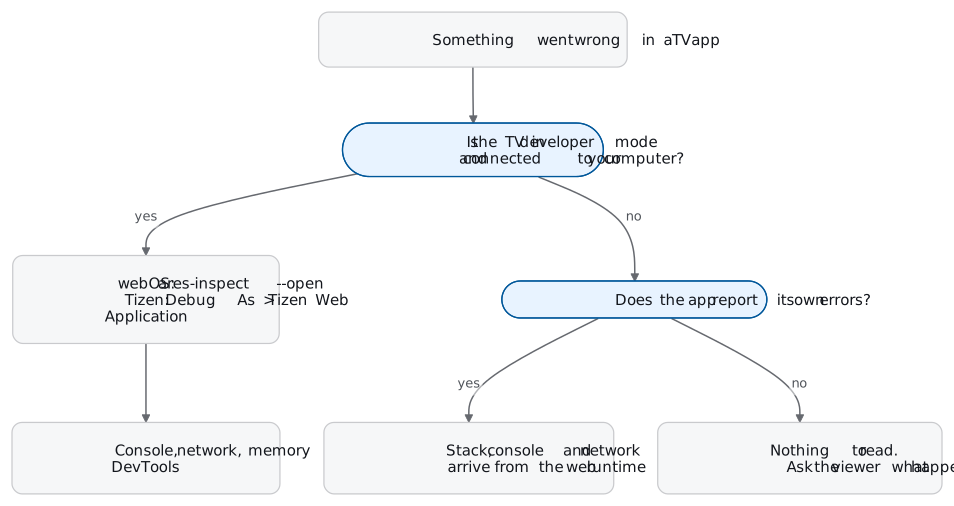
Smart TV app logs on Samsung Tizen and LG webOS are browser logs. Both TVs run your app as a web page in a Chromium build, so the logs that matter are the JavaScript console and the network panel, read from a DevTools window on your computer. On webOS you open it with ares-inspect. On Tizen, Tizen Studio opens the Web Inspector when you run the app in debug mode. Both need a TV in developer mode, on your desk, connected to your machine.
That last condition is the whole problem. This guide covers the setup on both platforms, the commands that exist and the ones that do not, the failures DevTools never sees, and what you can get from TVs you are not holding.
It is for teams shipping web apps to Samsung and LG TVs. If your channel runs on Roku, BrightScript has its own debugger and its own exit record; read Roku crash logs instead.
Both TVs run your app as a web page
| TV year | Samsung (Tizen) web engine | LG (webOS TV) web engine |
|---|---|---|
| 2026 | Tizen 10.0, Chromium M130 | webOS TV 26, Chromium 132 |
| 2025 | Tizen 9.0, Chromium M120 | webOS TV 25, Chromium 120 |
| 2024 | Tizen 8.0, M108 | webOS TV 24, Chromium 108 |
| 2023 | Tizen 7.0, M94 | webOS TV 23, Chromium 94 |
| 2022 | Tizen 6.5, M85 | webOS TV 22, Chromium 87 |
Samsung publishes its column on the Web Engine Specifications page, LG on Web API and Web Engine. Older sets go further back: webOS TV 5.x runs Chromium 68 and webOS TV 3.x Chromium 38.
On webOS TV, an app is either a basic (packaged) web app or a hosted web app, a small local package that redirects to content on your server. On Samsung, tizen install installs only .wgt web packages on a TV. Tizen .NET exists as well, letting you write Samsung TV apps in C# with Xamarin.Forms, but it is a different toolchain and outside this guide.
So the debugging model is a browser’s. An uncaught exception lands in the console. A failed API call shows in the network panel. There is no native crash dump to symbolicate.
The two toolchains, side by side
| Step | Samsung Tizen | LG webOS |
|---|---|---|
| Developer mode | Smart Hub, Apps, enter 12345, Developer mode On, your computer’s IP, reboot | Developer Mode app, sign in with an LG Developer account, Dev Mode Status, reboot |
| Connect | Tizen Studio Device Manager, or sdb connect <TV IP> | ares-setup-device (port 9922, user prisoner), then ares-novacom --getkey |
| Inspect | Debug As > Tizen Web Application opens the Web Inspector | ares-inspect --device <tv> --app <app id> --open |
| Logs from the CLI | None: Samsung says sdb logging is not supported on Samsung TVs | No ares-log in LG’s CLI guide; ares-device -r monitors CPU and memory |
| Tool version | Tizen Studio 6.1 download, Samsung Certificate Extension 2.0.73 or later | webOS CLI, @webos-tools/cli on npm |
Commands and menu names below are as LG’s webOS TV developer site and Samsung’s Smart TV developer site document them on 27 October 2026. Both vendors have renamed tools before, so check the linked pages when a step does not match.
LG webOS: Developer Mode, ares-setup-device, ares-inspect
LG retired the old webOS TV CLI in March 2024 and points developers to the webOS CLI, which installs from npm:
npm install -g @webos-tools/cliUse Node.js 20 or later. LG’s installation page still recommends Node.js 14.15.1 to 16.20.2, but that advice is stale: webOS CLI v3.2.6 raised the required Node.js version to >=20 (release notes). LG’s own release notes stop at v3.1.1 from July 2024; from v3.2.0 they move to the webos-tools/cli GitHub releases.
- Install the Developer Mode app on the TV from LG's app store and sign in with your LG Developer site account. Turn on Dev Mode Status. The TV reboots.
- Register the TV: run
ares-setup-device, choose add, and enter a name, the TV's IP address, port 9922 and the ssh userprisoner. No password. - Turn on Key Server in the Developer Mode app, then run
ares-novacom --device tv --getkeyand type the six-character, case-sensitive passphrase the TV shows. - Check the link with
ares-device --system-info --device tv. - Package the app without minifying it. LG notes this is needed to monitor the app in Web Inspector, and readable source is the point anyway.
- Open the inspector with
ares-inspect --device tv --app com.example.app --open.
ares-inspect --open opens Web Inspector in your default browser, and LG says Web Inspector works properly on Chromium-based browsers. The browser version matters on older sets. LG lists the latest Chrome for recent webOS TV releases, Chrome 68 for webOS TV 5.0 and Chrome 38 for webOS TV 3.x. If the console stays blank against a 2020 TV, the browser is the first thing to change. For a JS service rather than the web app, --service opens Node Inspector instead.
If you searched for ares-log: LG’s CLI Developer Guide lists ares, ares-config, ares-generate, ares-package, ares-setup-device, ares-install, ares-launch, ares-inspect, ares-server, ares-novacom and ares-device. There is no log command for webOS TV in it. Your webOS app logs are the console in Web Inspector.
The one other source of data is ares-device with -r, which monitors CPU and memory use on the TV:
# every running app and service
ares-device -d tv -r -l
# one app, every 3 seconds, saved to CSV
ares-device -d tv -r -id com.example.app -t 3 -s resource.csv
A memory curve that only climbs across ten minutes of browsing is worth more than any single console line.
Developer Mode does not stay on. The session is time-limited and the Remain Session field shows what is left; EXTEND adds time while the TV is on a network. LG lists two ways it switches off: ten reboots without a network connection, or a reboot after the session has run out. When it does, the apps you installed in Developer Mode are uninstalled.
Samsung Tizen: Developer Mode, sdb connect, the Tizen Web Inspector
Samsung’s TV SDK download is Tizen Studio 6.1, and Samsung also lists a VS Code extension for Tizen. You need a certificate profile before an app will run on a TV, and certificate creation needs Samsung Certificate Extension 2.0.73 or later after September 2025.
- On the TV, open Apps in Smart Hub and enter
12345with the remote. Switch Developer mode on, enter your computer's IP address, and reboot the TV. - In Tizen Studio, open Tools > Device Manager. Under Remote Device Manager, add the TV by name and IP address, then set Connection to On.
- If the Device Manager will not connect, keep the TV and computer on the same network and run
sdb connect <TV IP>from Tizen Studio's tools directory. - Right-click the project and choose Debug As > Tizen Web Application. The app installs, starts, and the Tizen Web Inspector opens.
The Tizen Web Inspector is built on the WebKit Web Inspector and Chrome Developer Tools, and Samsung says every Samsung TV since 2015 supports it. It shows CSS and layout, memory and network use, and lets you pause JavaScript and read variables. That is most of Tizen TV debugging. The rest is working around its edges, all documented by Samsung:
- Startup is already over. The app launches before the inspector attaches, so you cannot watch initialization. Press F5 to reload the app with the inspector open.
- Closing the app disconnects you. With no app running, the WebSocket to your computer closes. Samsung's workaround: start a second app from Smart Hub, return to yours, and the hidden one keeps the connection up.
- Closing does not end it. While debugging, closing the app sends it to the background instead of terminating it. Samsung says to reboot the TV to relaunch.
- New Chrome can break it. Samsung says the Web Inspector does not work properly with Samsung TVs on later Google Chrome versions, and suggests an older one.
- Video traffic is missing. The network panel shows ordinary web traffic only. Media playback through the AVPlay API does not appear.
The last one matters for streaming apps: when playback fails, the requests you most want to see are the ones the inspector leaves out.
sdb dlog is where most people get stuck. Samsung’s Application Testing Q&A answers it directly: the sdb logging feature is not supported on Samsung TVs, and system logs cannot be retrieved. Root access through sdb is not possible either. sdb connect works; sdb dlog does not.
Crashes DevTools never shows you
There is no Samsung TV app crash log to fetch. Samsung states that TV applications do not support generating crash logs, and suggests a software watchdog timer to detect an app that stops or closes unexpectedly. That leaves two kinds of failure that never reach a console.
The TV ends the app. LG’s lifecycle documentation says a launched app can be terminated or suspended at any time. Samsung is more specific about memory. It lists a limit of 380 MB on UHD models and 300 MB on FHD models, counting PSS, swap, GPU and GEM memory together. Its memory guide says heavy use degrades the whole TV and gets background apps killed, and that an app holding memory while hidden is the first to be killed and reloads from scratch on return. To a viewer, that looks like the app restarting at the home screen for no reason.
The runtime goes away. When the page itself is gone, so is the JavaScript that would have logged anything. Nothing after that point reaches a console.
Neither of these appears in DevTools, so you work around them:
- Watch memory while you test.
ares-device -ron LG. On Samsung, Chrome DevTools heap snapshots in the Memory panel, filtered for Detached nodes, which is what Samsung’s memory guide recommends. - Catch it before the kill on newer Samsung TVs. Samsung’s PMS API (
webapis.pms) returns the app’s memory usage and limit in KB, andsetMemoryUsageCallbackfires when usage goes over the allowed limit. It is marked Since 10.0 and needs thehttp://tizen.org/privilege/systemprivilege. That callback is your last chance to write something down. - Detect the restart. A watchdog, as Samsung suggests: record that a session is in progress, clear it when the app exits cleanly, and check on the next launch.
Why none of this reaches viewers’ TVs
Every tool above needs developer mode, a connected computer and someone watching. On LG, the apps you sideloaded are uninstalled when Developer Mode switches off. A viewer’s TV, or a tester’s in another office, has none of it. When something breaks there, the console output is gone the moment the app closes, and nobody had DevTools attached.
What reaches you from those TVs is what the app sends itself, from inside the web runtime. That means catching uncaught errors and unhandled promise rejections in the page, keeping a short buffer of console lines and requests, and posting them when an error fires. You can build that, or use an SDK that does it.
Where Everframe fits
This is the part we sell, so here it is with its limits. On Tizen and webOS, apps use the Everframe React SDK or the framework-agnostic Web SDK, running in the TV’s web runtime like any web page.
Uncaught errors and unhandled rejections become reports on their own, with the stack (crash reporting). Each report carries the last 100 console lines and the last 100 fetch and XHR requests with status and duration (console and network), and the trail of screens before the error. Replay comes along when you enable it for the app. Once your build uploads its source maps, frames map back to your original files. The report names the device too: a Samsung TV reads as “Tizen 9.0 · Samsung TV”, not as Chrome on Linux.
import { init } from '@everframe/web';

const everframe = init({
  sdkKey: 'evf_live_…',
  appVersion: '3.2.0',
  appBuild: 'tizen-3.2.0-41',
});

// Samsung PMS API (Since 10.0): file a report before a possible memory kill.
(window as any).webapis?.pms?.setMemoryUsageCallback((info: any) => {
  everframe.captureException(new Error('Memory over the allowed limit'), {
    severity: 'warning',
    context: 'tizen.pms',
    metadata: { usedPss: info.usedPss, allowedPss: info.allowedPss },
  });
});
Two TV-specific details. Many TV apps route in the URL fragment, and the SDK names screens from the path and query only, so call everframe.recordScreen('Player') from your router (screen tracking). And the trail does not know about remote keys unless you add them with addBreadcrumb.
What it does not do on TVs. There is no reporter on the TV: a viewer or tester cannot file a report from the screen, and nothing is typed with the remote. A crash of the TV's own web runtime is not reported, and neither is the TV killing the app, because no JavaScript is left running to send it. Network capture covers fetch and XHR, so playback requests made outside them, such as AVPlay on Samsung, are not in the report either.
The Tizen and webOS pages list what the SDK captures. The Free plan covers 1,000 monthly active installs with unlimited crash reports, enough for a test fleet.
A checklist for your next TV build
- Keep one TV per platform in developer mode. Note the date: LG's session runs out, and the sideloaded app goes with it.
- Match the browser to the TV. Old webOS sets need Chrome 68 or 38; Samsung's Web Inspector can fail on the newest Chrome.
- Ship debug builds unminified. LG needs it for Web Inspector, and both inspectors are easier to read with it.
- Watch memory on every test pass.
ares-device -r -son LG, heap snapshots on Samsung, and the PMS callback on new Samsung TVs. - Report errors from production builds. Developer mode covers the TV on your desk. Viewers' TVs only send what the app reports itself.